📦 Dockhand
The Dockhand role monitors the status of orders as they move through the dock — from the moment the admin assigns a run to the CIT (Cash-in-Transit) crew, through bag scan-in and scan-out at the dock. The Dockhand does not create or approve orders; their view is a real-time status check on custody handovers between the dock and the crew.
📖 Overview
| Item | Details |
|---|---|
| Module | Dockhand |
| Estimated Time | 2–5 minutes |
| Workflow | Admin (assigns run) → Dockhand (order visible) → CIT Crew (scan-in) → Dockhand (bags visible) → CIT Crew (scan-out) → Dockhand (release view) |
✅ Before You Begin
- Ensure you have the required Dockhand permissions in the portal.
- Confirm the admin has already assigned the run to a CIT crew — orders are not visible to the Dockhand until this happens.
- Have the relevant run's service date on hand to filter the order list.
🔄 Workflow
Admin assigns run to CIT Crew
              │
              ▼
   Dockhand sees the order
              │
              ▼
   CIT Crew scans bags IN at dock
              │
              ▼
  Dockhand sees the bags (Handover Orders)
              │
              ▼
   CIT Crew scans bags OUT at dock
              │
              ▼
  Dockhand Release Orders (green = success)
📝 Step-by-Step Guide
Step 1: Order Visibility After Run Assignment
Orders only become visible to the Dockhand once the admin has assigned the run to a CIT crew. Until that assignment happens, the Dockhand has nothing to act on. At this point the order itself is visible, but its bags are not yet — bag visibility depends on the crew scanning in.
Step 2: CIT Crew Scans In Bags
Before scan-in, the CIT crew's app lists all the bags belonging to the run, each with a Scan bag action.
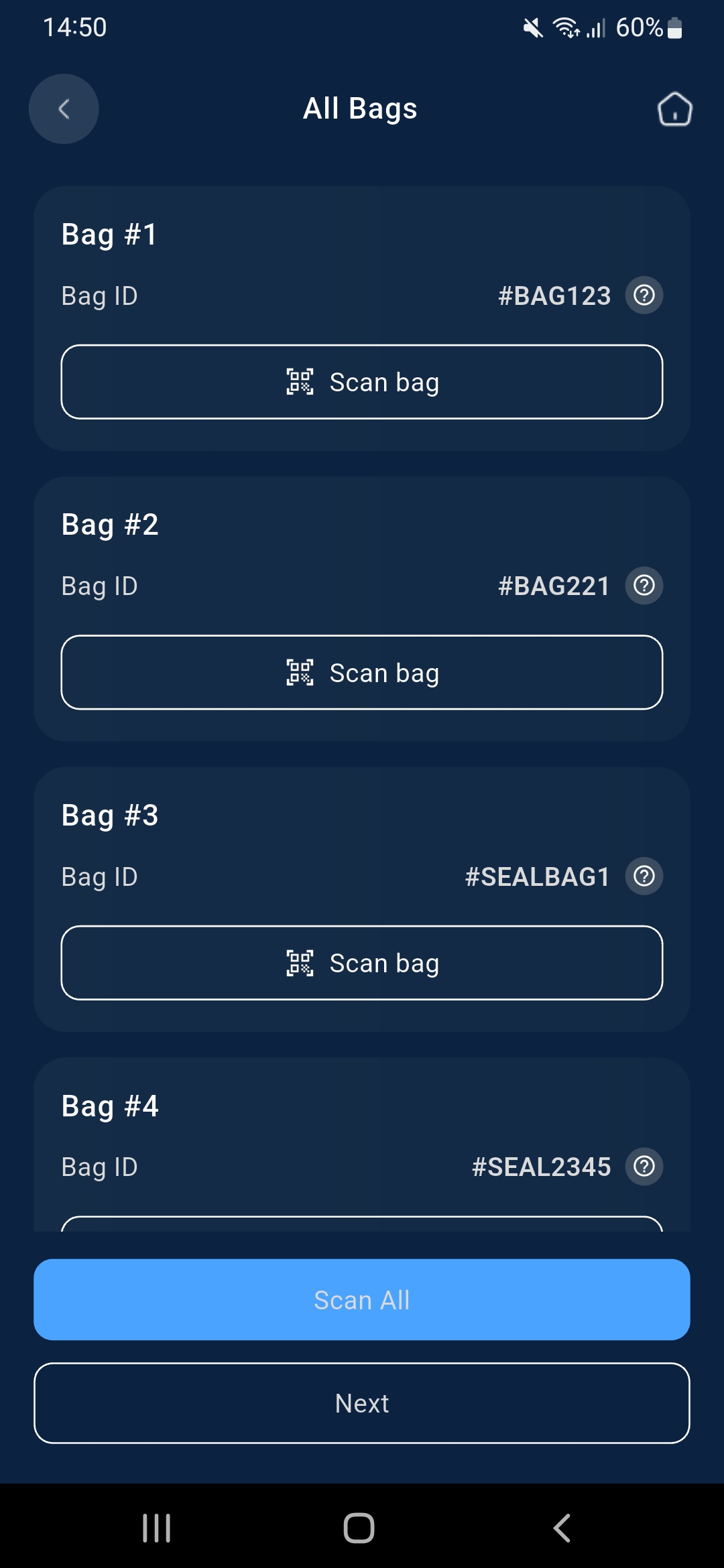
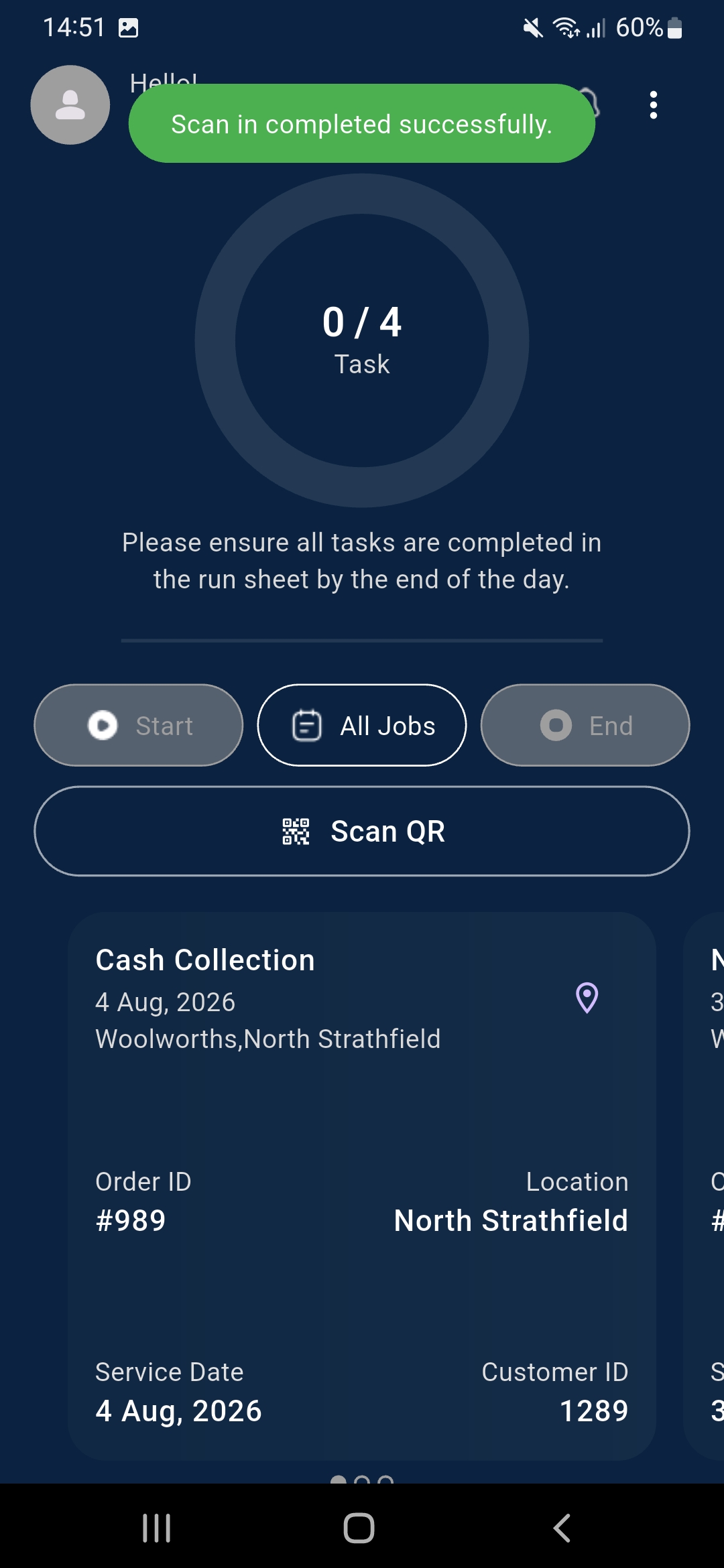
The crew scans each bag (or uses Scan All) to confirm every bag has been verified and picked up.
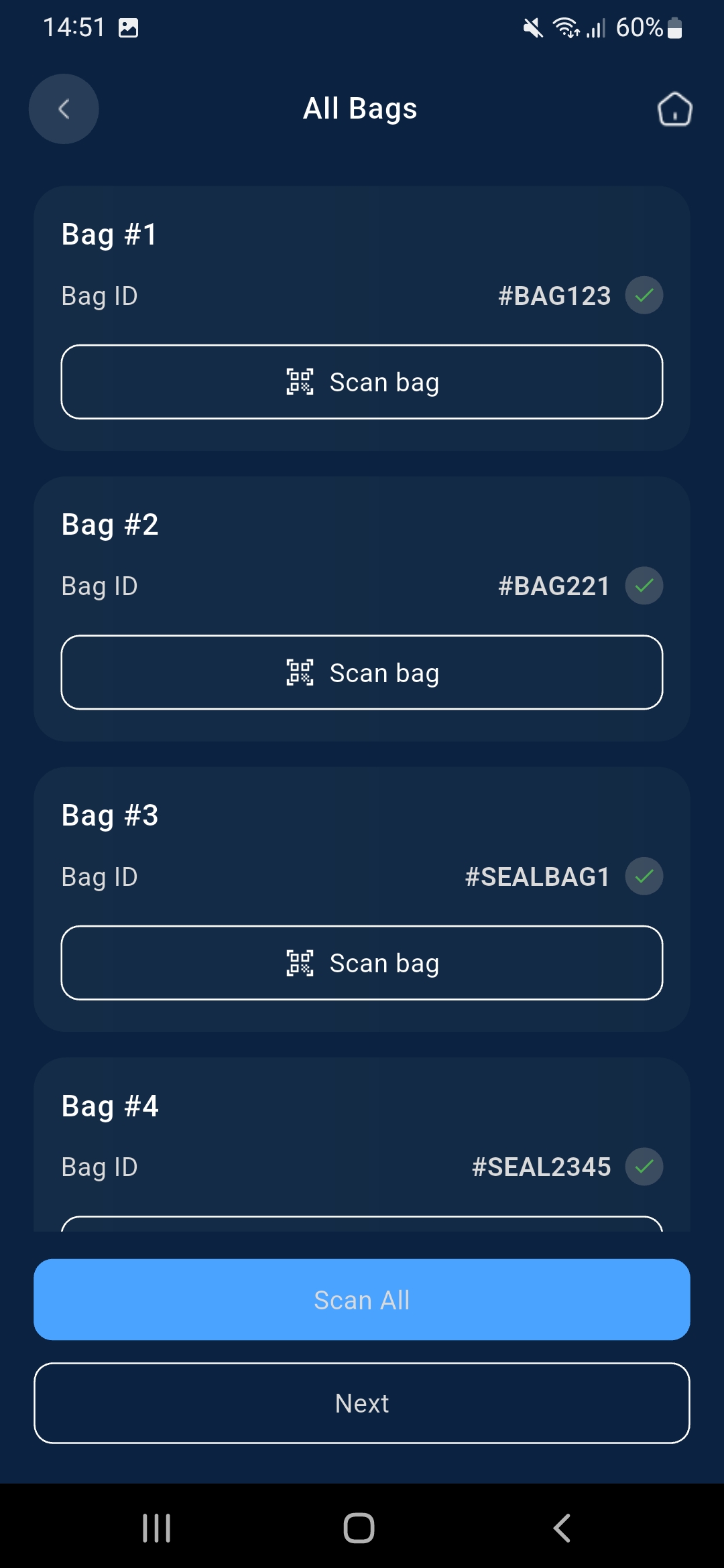
Once every bag is confirmed, scan-in completes successfully and the crew's task counter updates.
Step 3: Dockhand Views Handover Orders
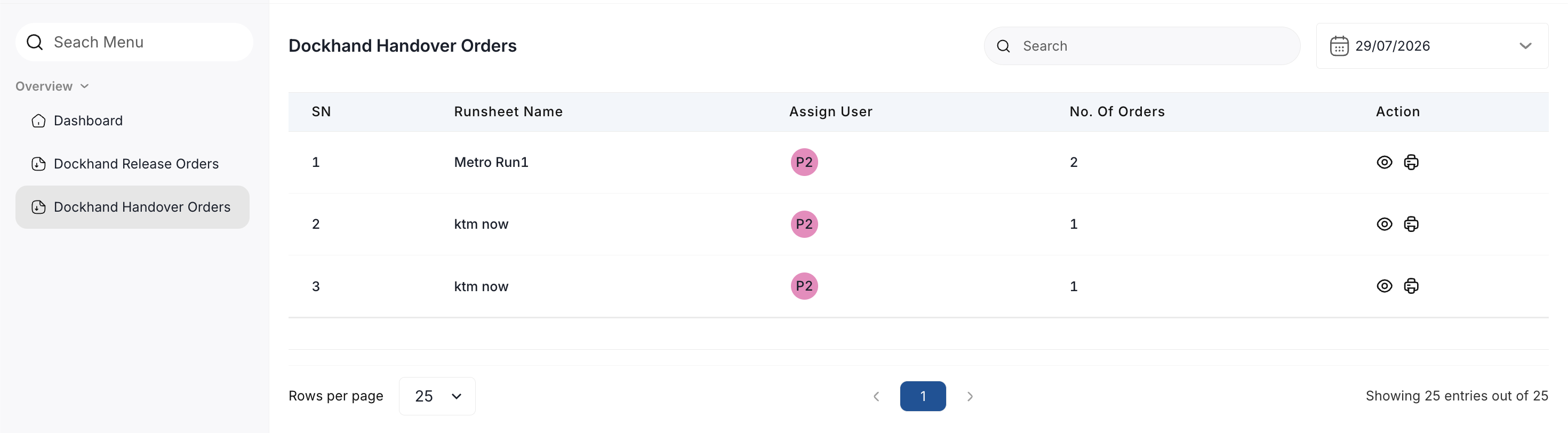
After the CIT crew has scanned bags in, the bags become visible to the Dockhand under Dockhand Handover Orders, grouped by runsheet with the assigned user and order count.
Click the eye icon on a runsheet to view its order details. Before the bags have been scanned out, each order and its outer seal bag IDs are marked with a red warning icon — indicating the handover is still pending.
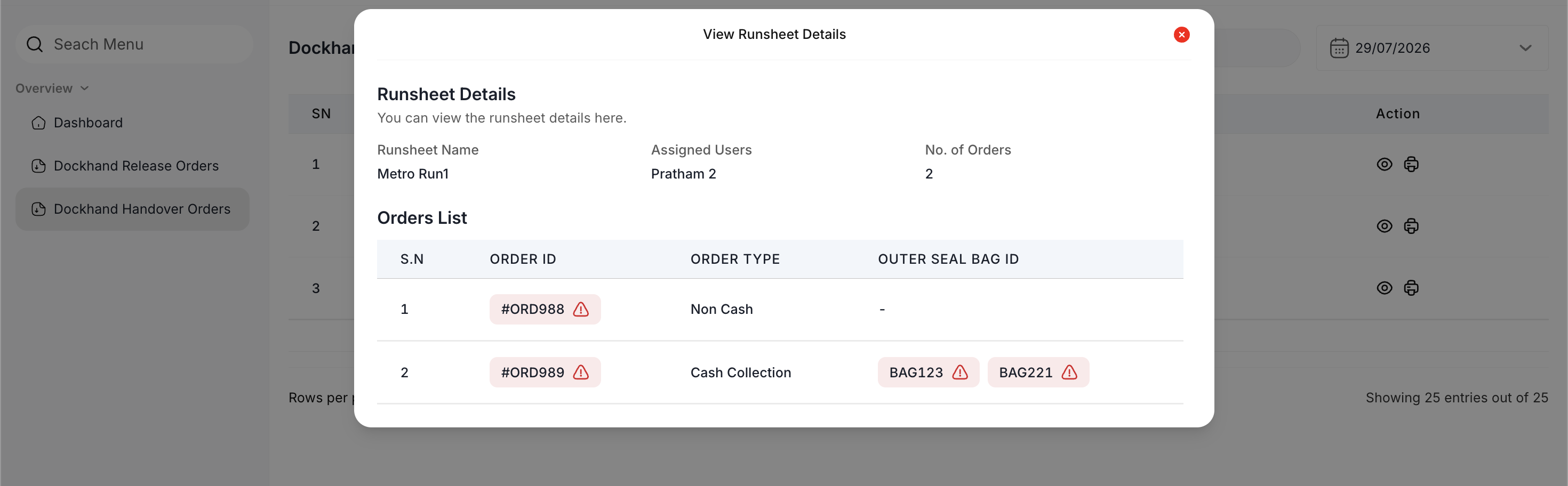
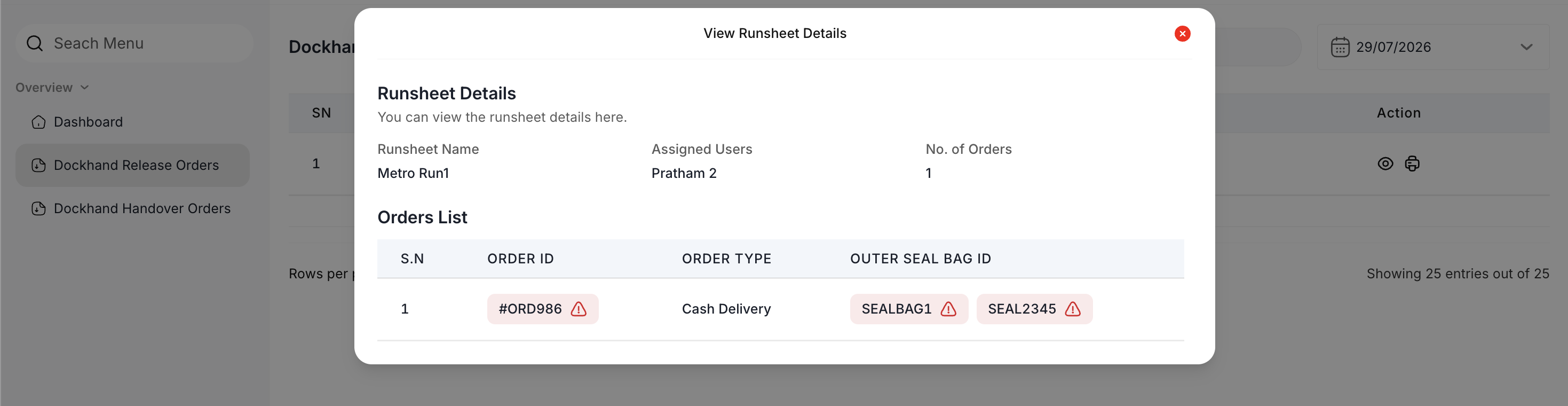
A red status icon on an order or bag ID means the item has not yet been scanned out — the task is still pending.
Step 4: CIT Crew Scans Out Bags
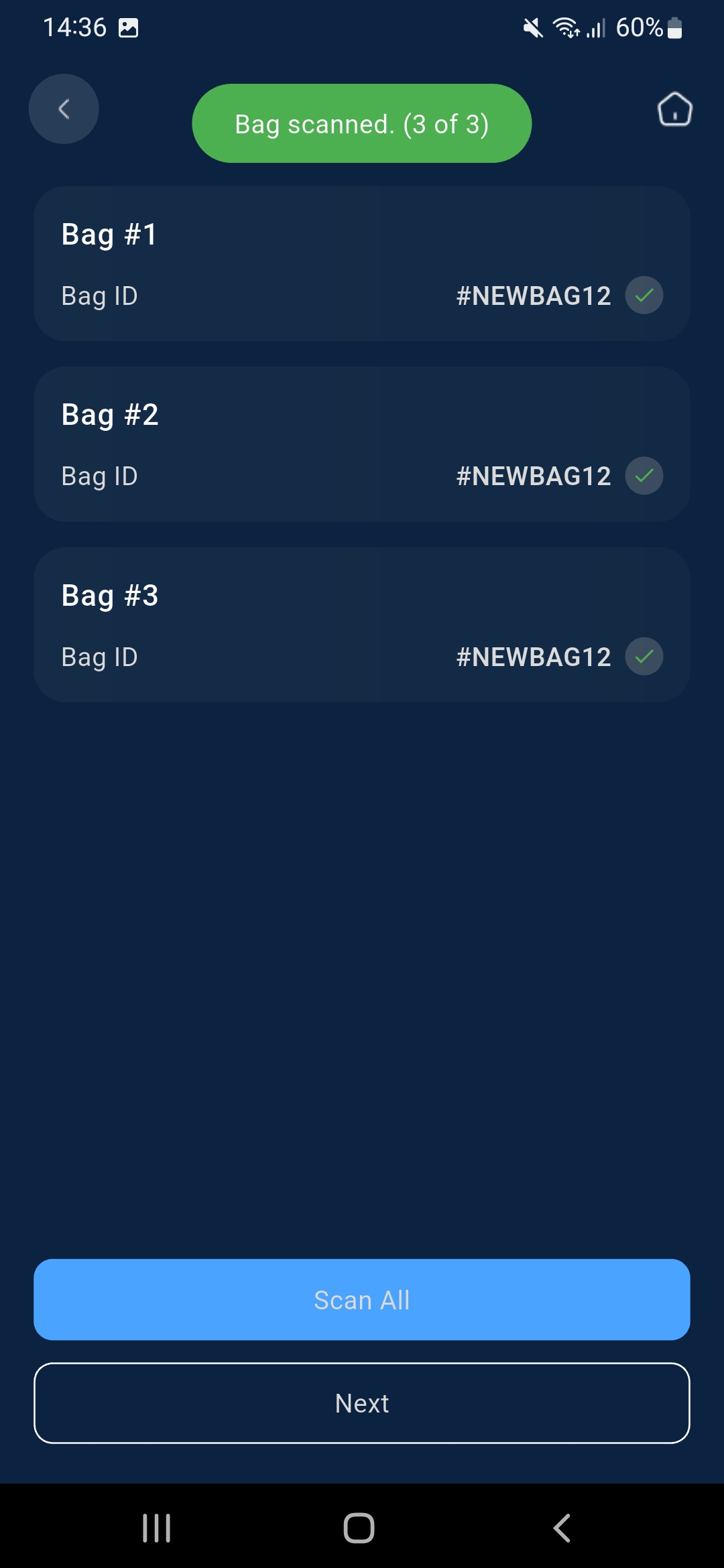
When the crew is ready to hand the bags back over (for example, at drop-off), they scan each bag out the same way they scanned in.
Step 5: Dockhand Verifies Release Orders
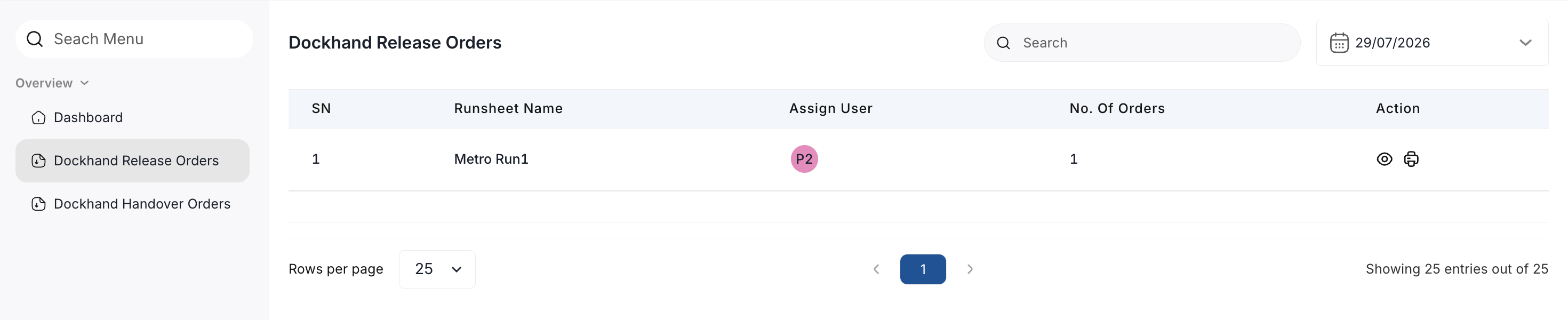
Scanned-out orders move to Dockhand Release Orders.
Opening the runsheet details now shows every order and outer seal bag ID marked with a green check icon — confirming the scan-out, and the task, completed successfully.
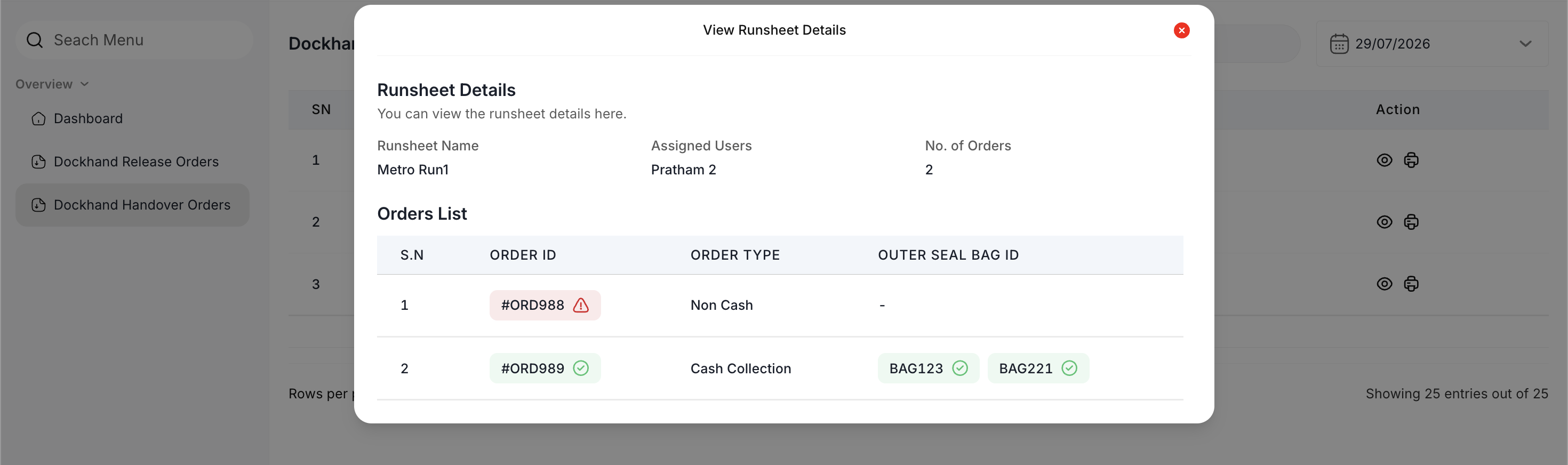
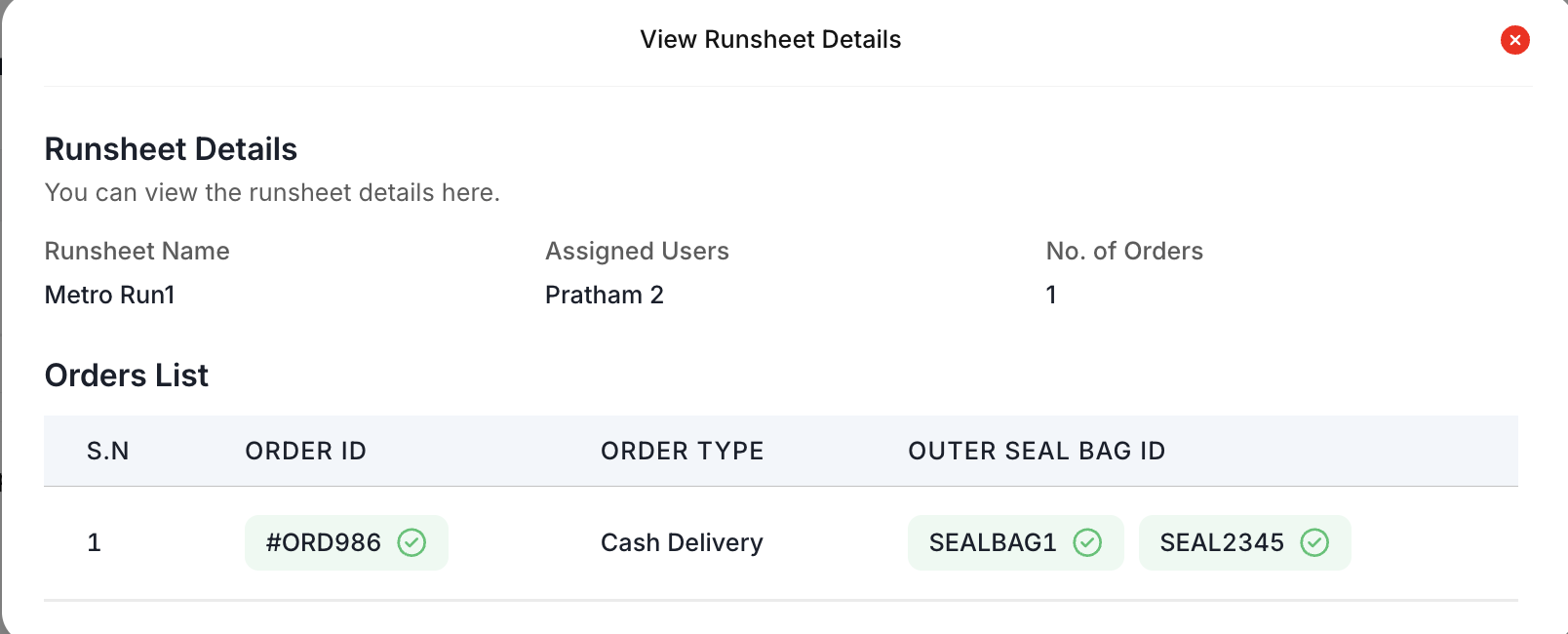
A green status icon means the order (and its bags) has been scanned out successfully and the handover is complete.
Summary
The Dockhand provides a live, color-coded status check on order custody at the dock: orders appear once the admin assigns the run to a CIT crew, their bags appear once the crew scans in, show red while scan-out is still pending, and turn green once the CIT crew has successfully scanned the bags out.