Assign Float Orders to Runs
tip
These steps are performed by the Route Planner.
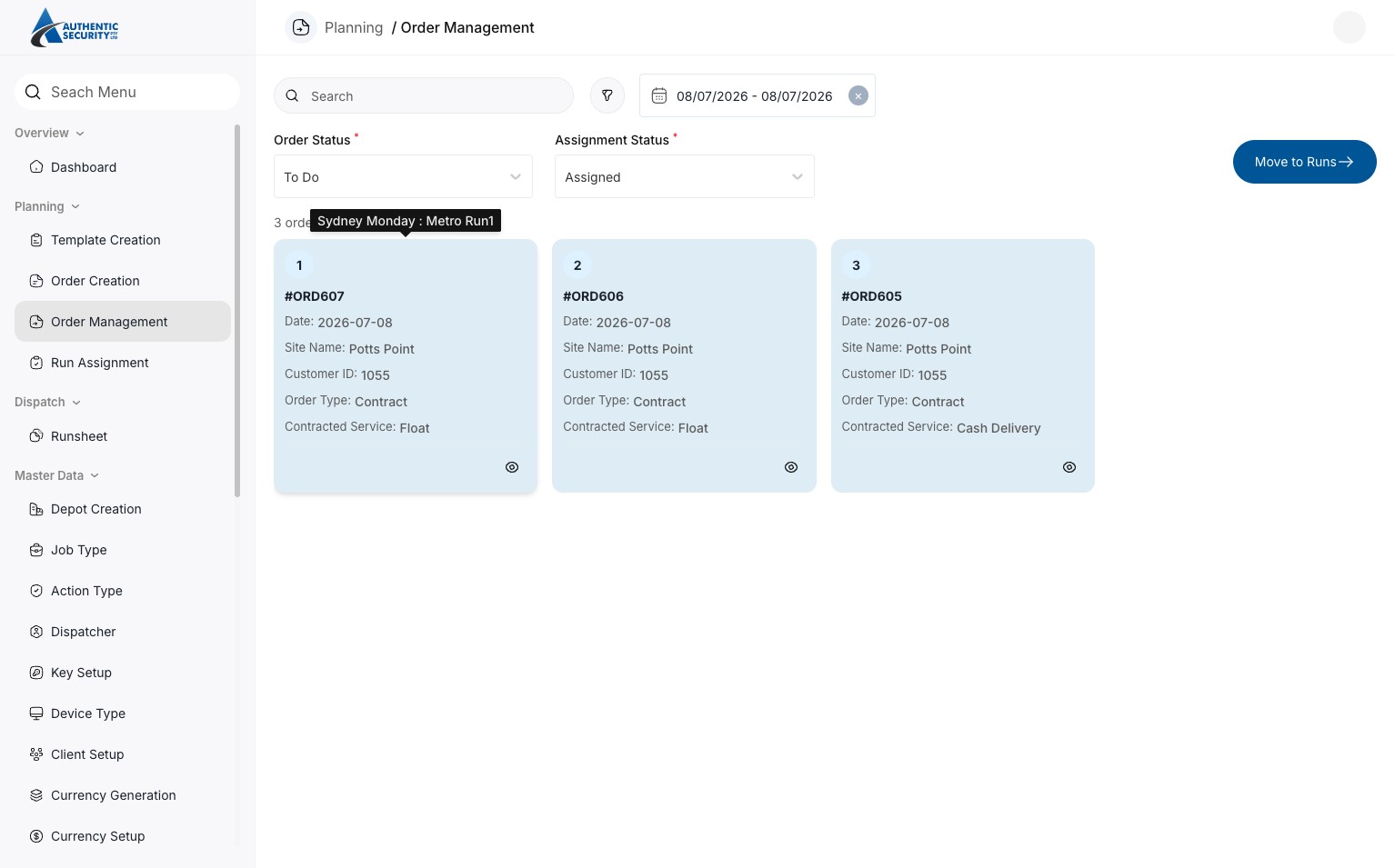
Step 1: Open Order Management
Login using the Route Planner role.
Navigate to Order Management.
Step 2: Move Orders to Runs
Select the orders.
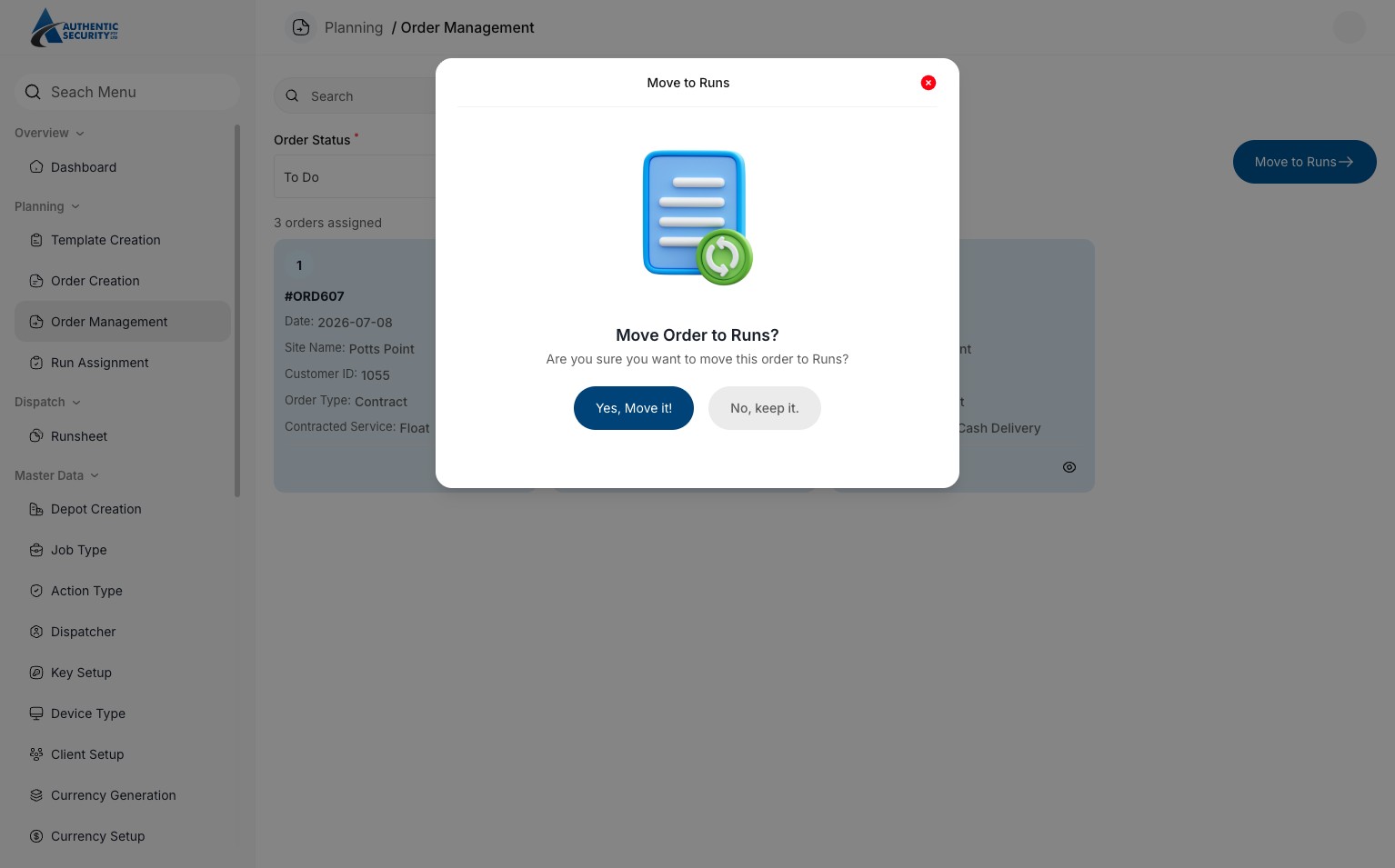
Click Move to Runs.
Confirm the action.
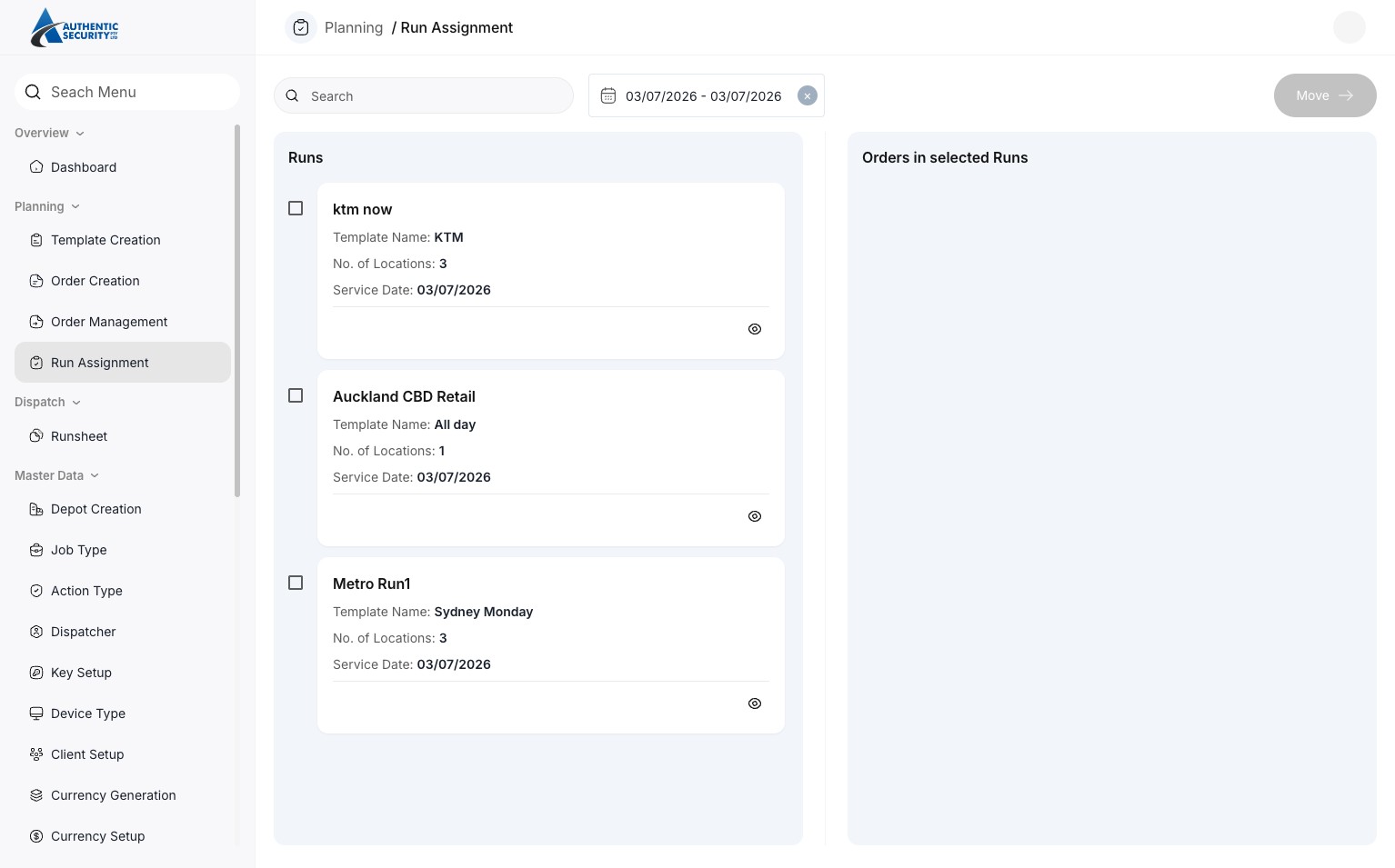
Step 3: Open Run Assignment
Choose the newly created Run.
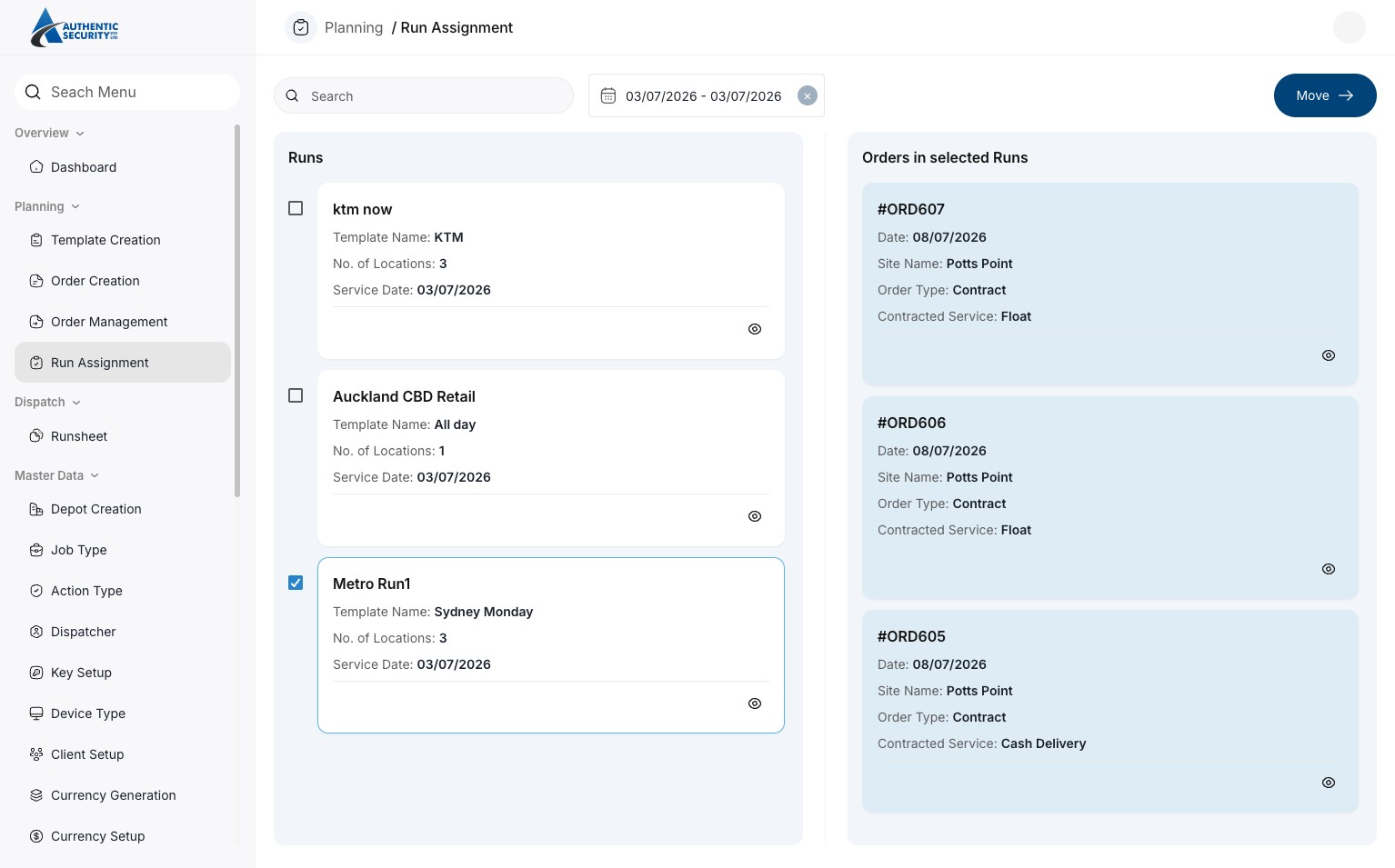
Step 4: Verify Orders
Review the orders assigned to the Run.
Click Move.
Step 5: Configure the Runsheet
Choose:
- Service Date
- User
- Vehicle
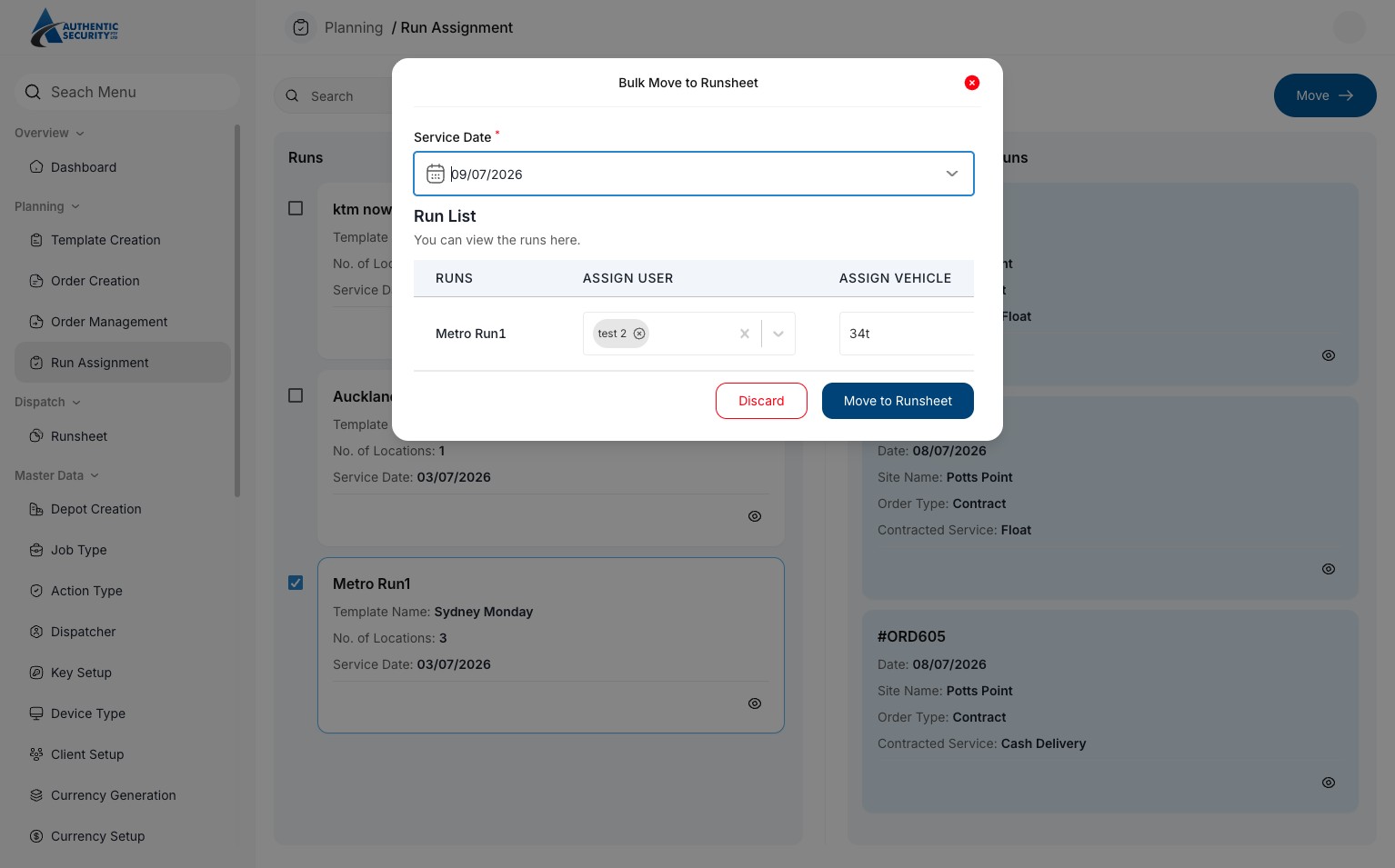
Step 6: Runsheet Assigned
The orders are now assigned to the Runsheet.
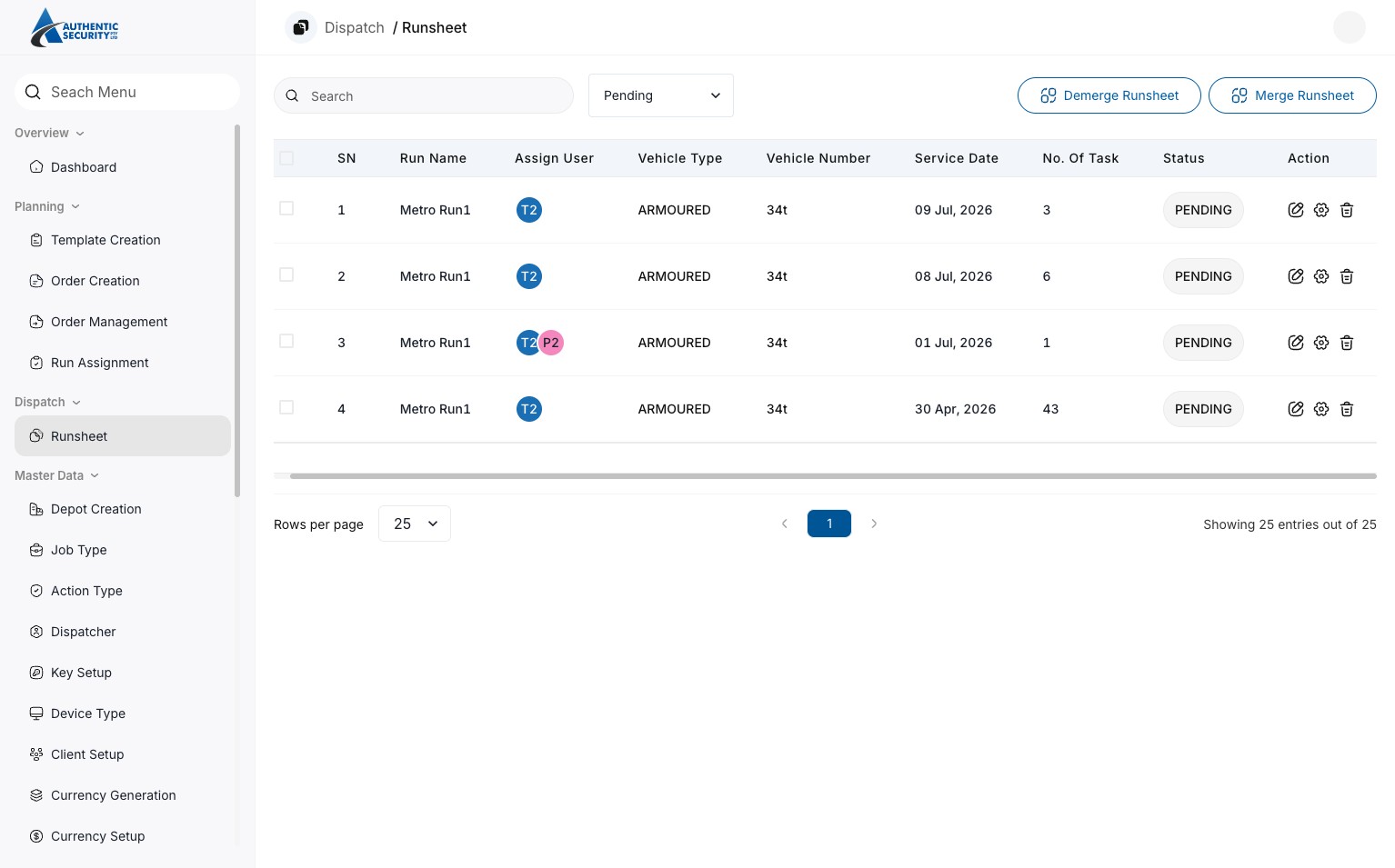
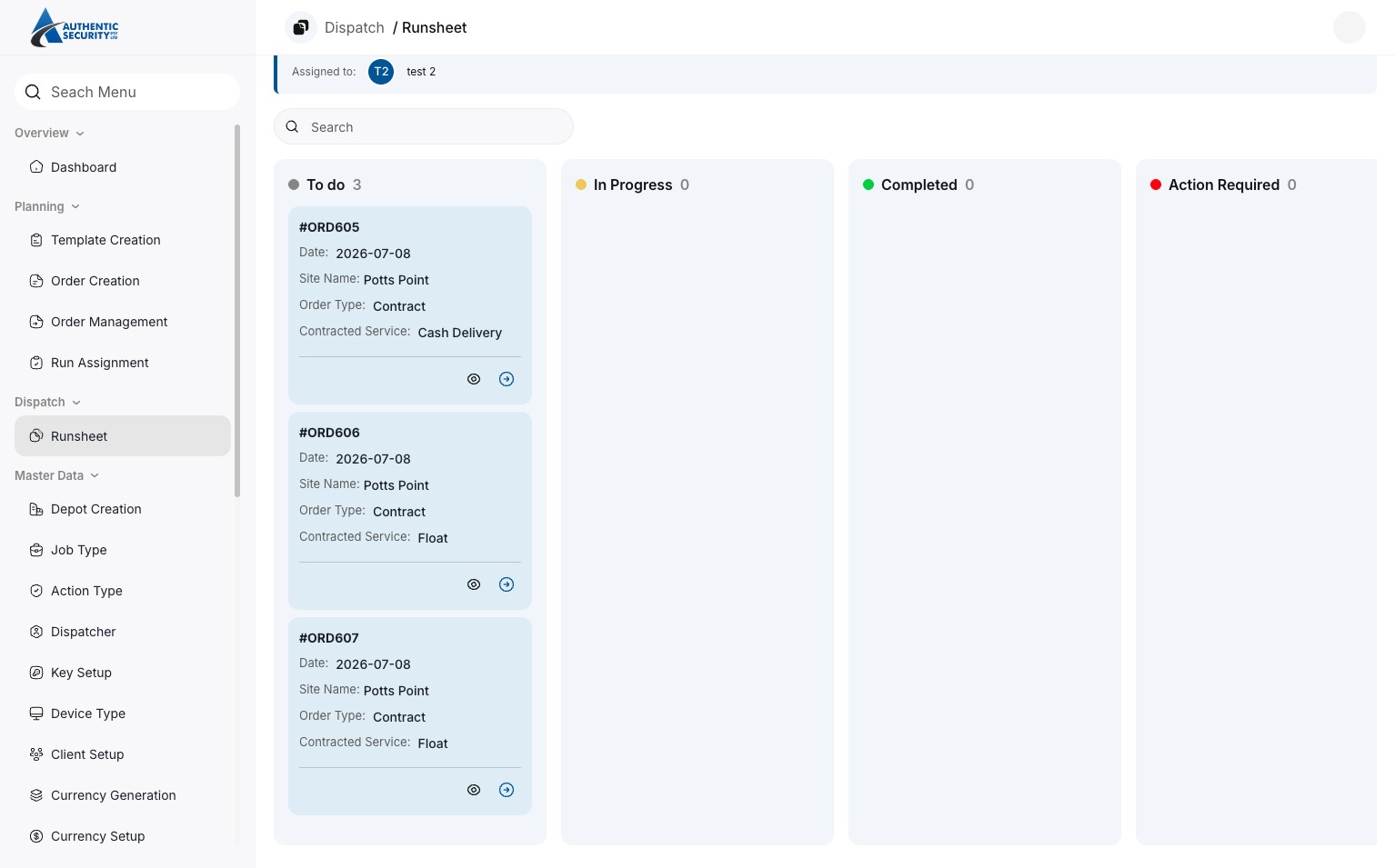
Step 7: View Order Status
Click the Settings icon to view the order status.
Step 8: Delete Runsheet (Optional)
If required, delete the Runsheet using the Delete action.
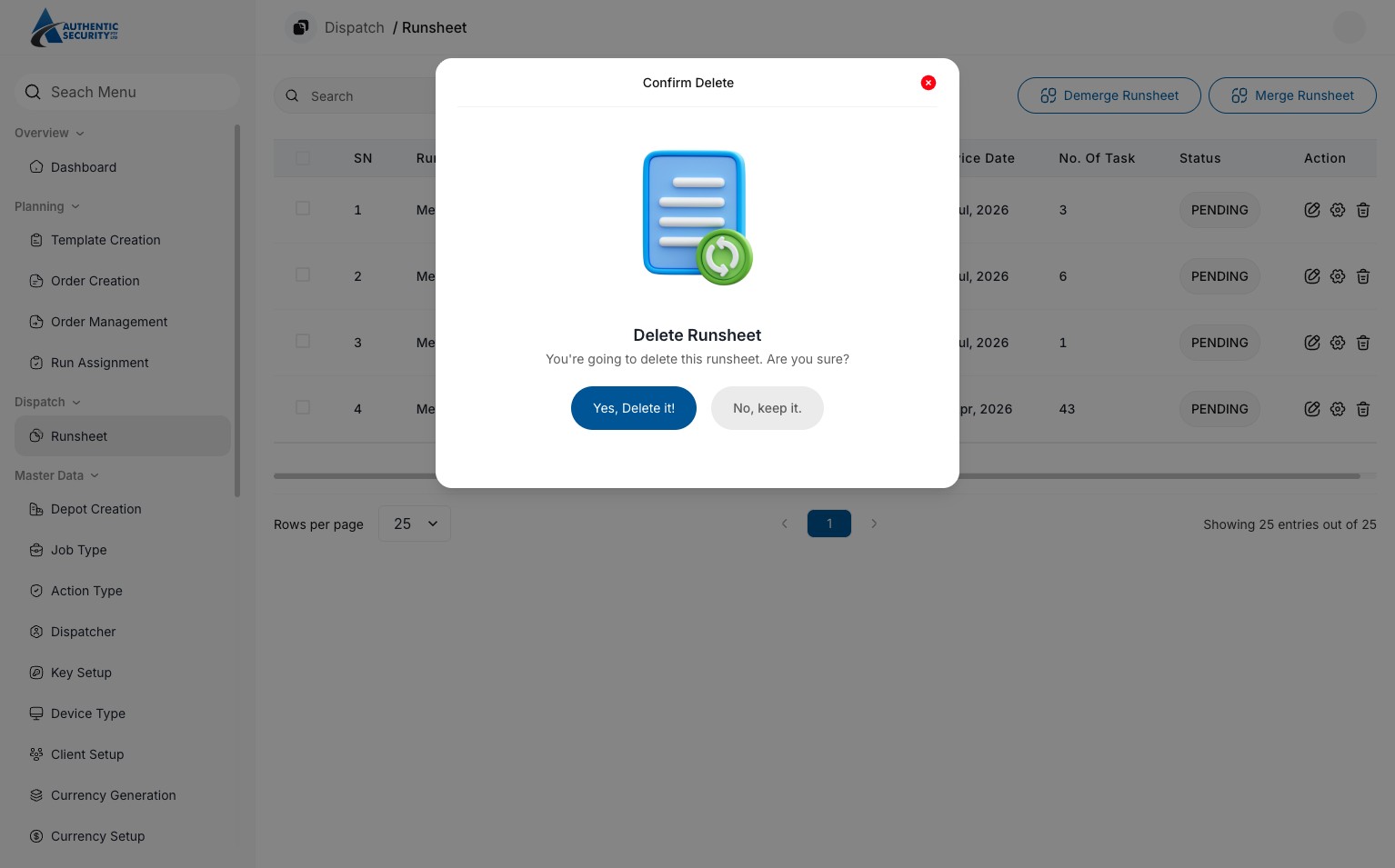
warning
Deleting a Runsheet may affect scheduled deliveries. Ensure the Runsheet is no longer required before removing it.