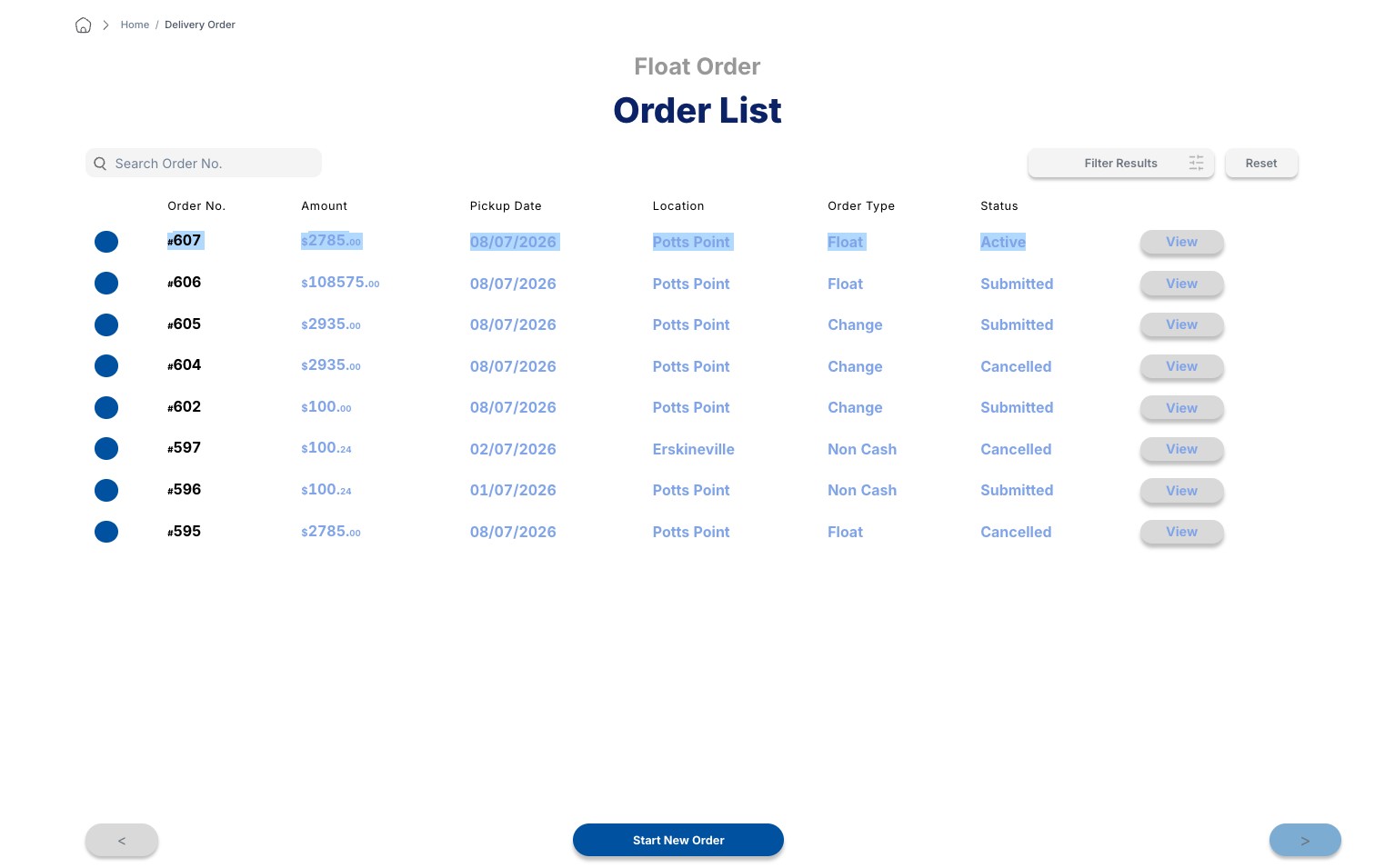
Create a Float Order
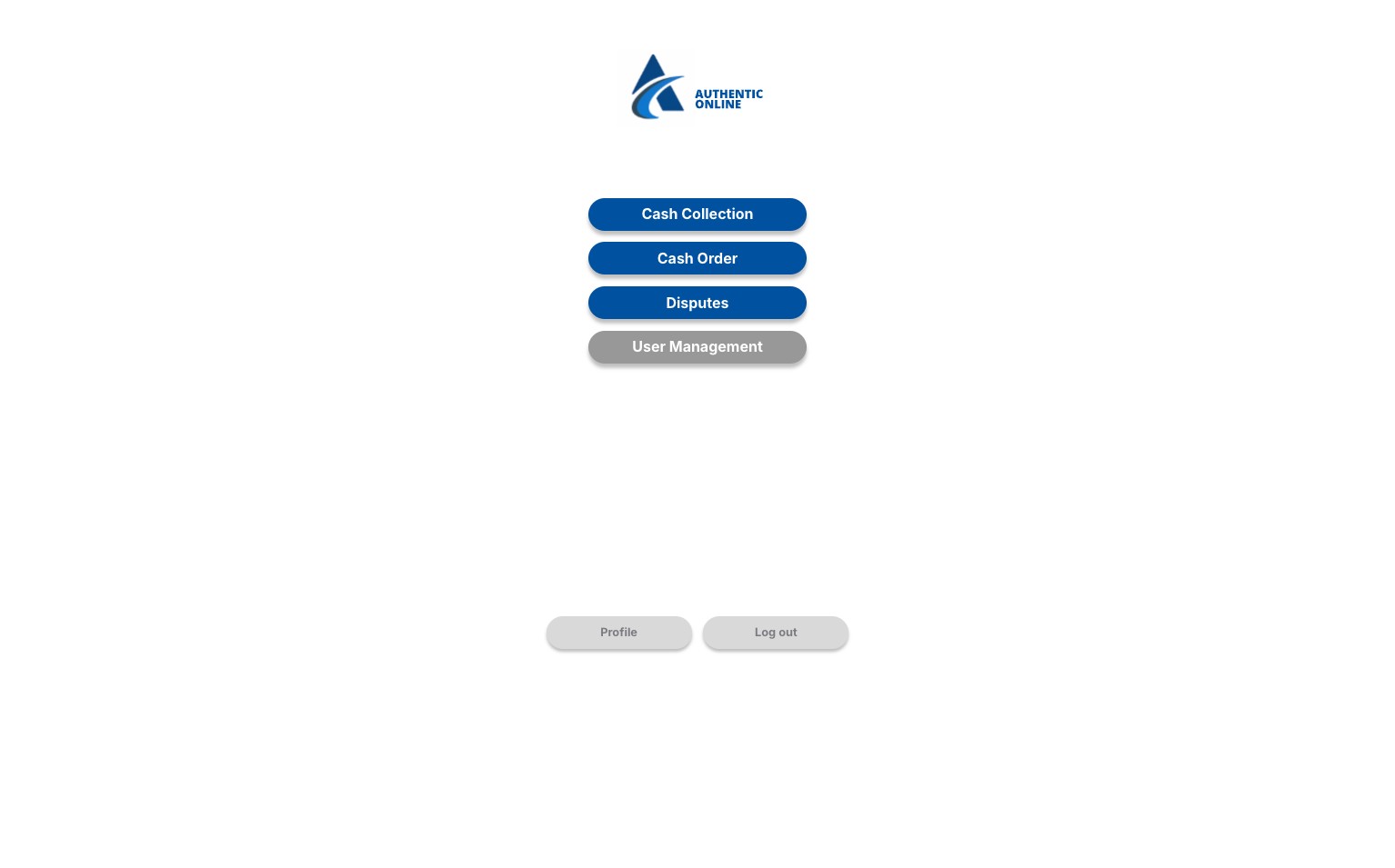
Step 1: Go to Cash Order
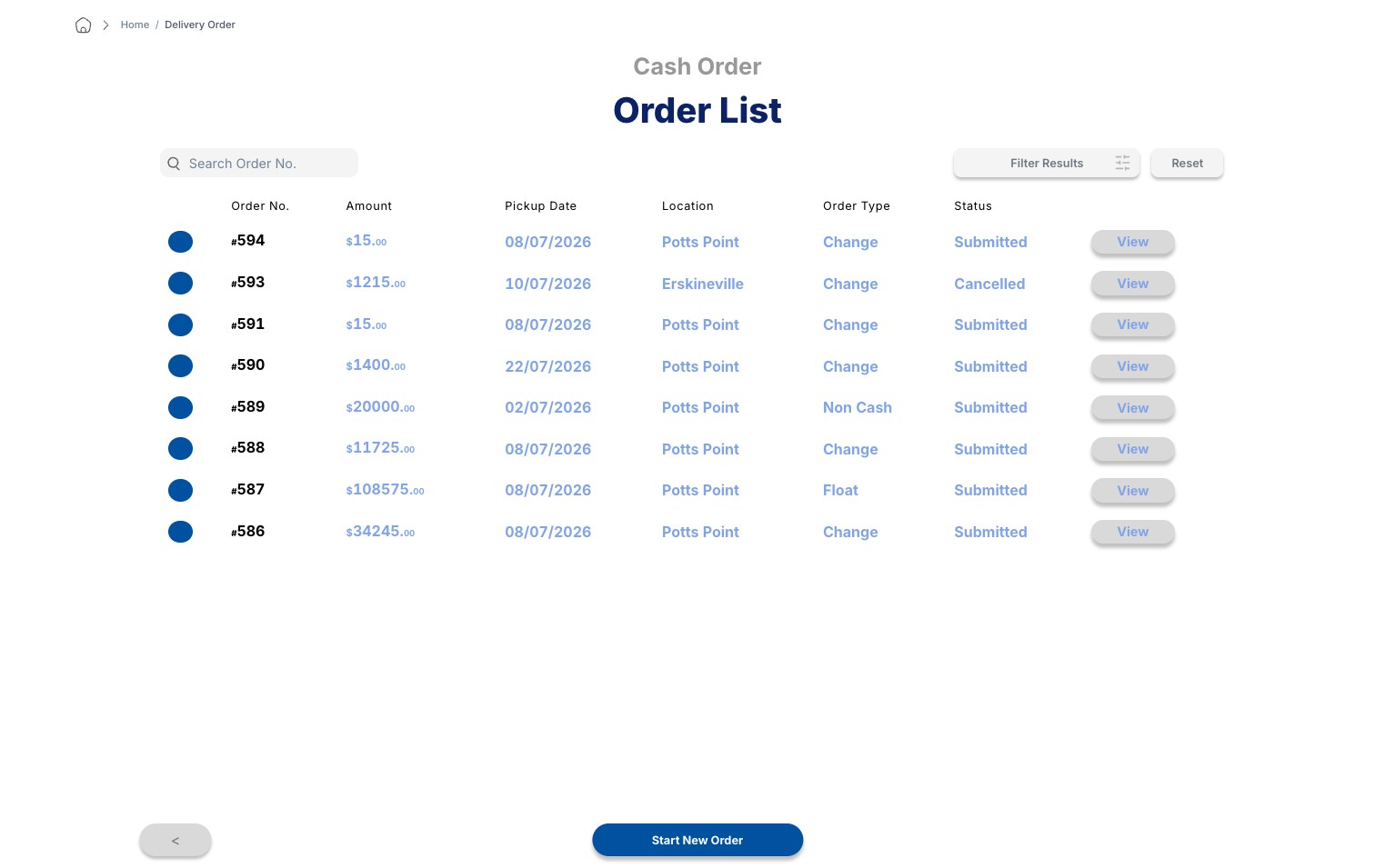
Step 2: Start New Order
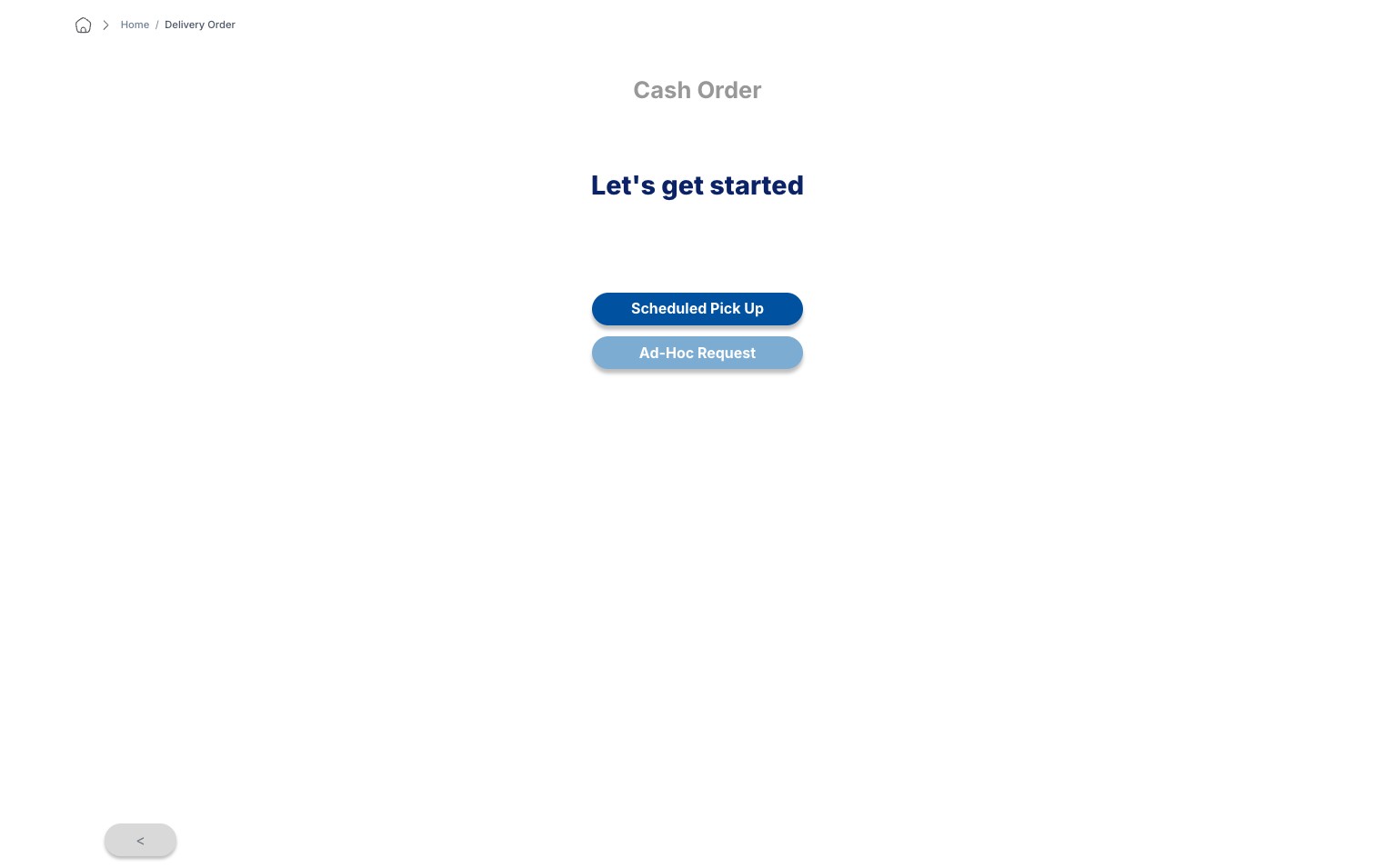
Step 3: Choose Scheduled Pick Up or Ad-Hoc Request
note
Both options follow the same workflow after this step.
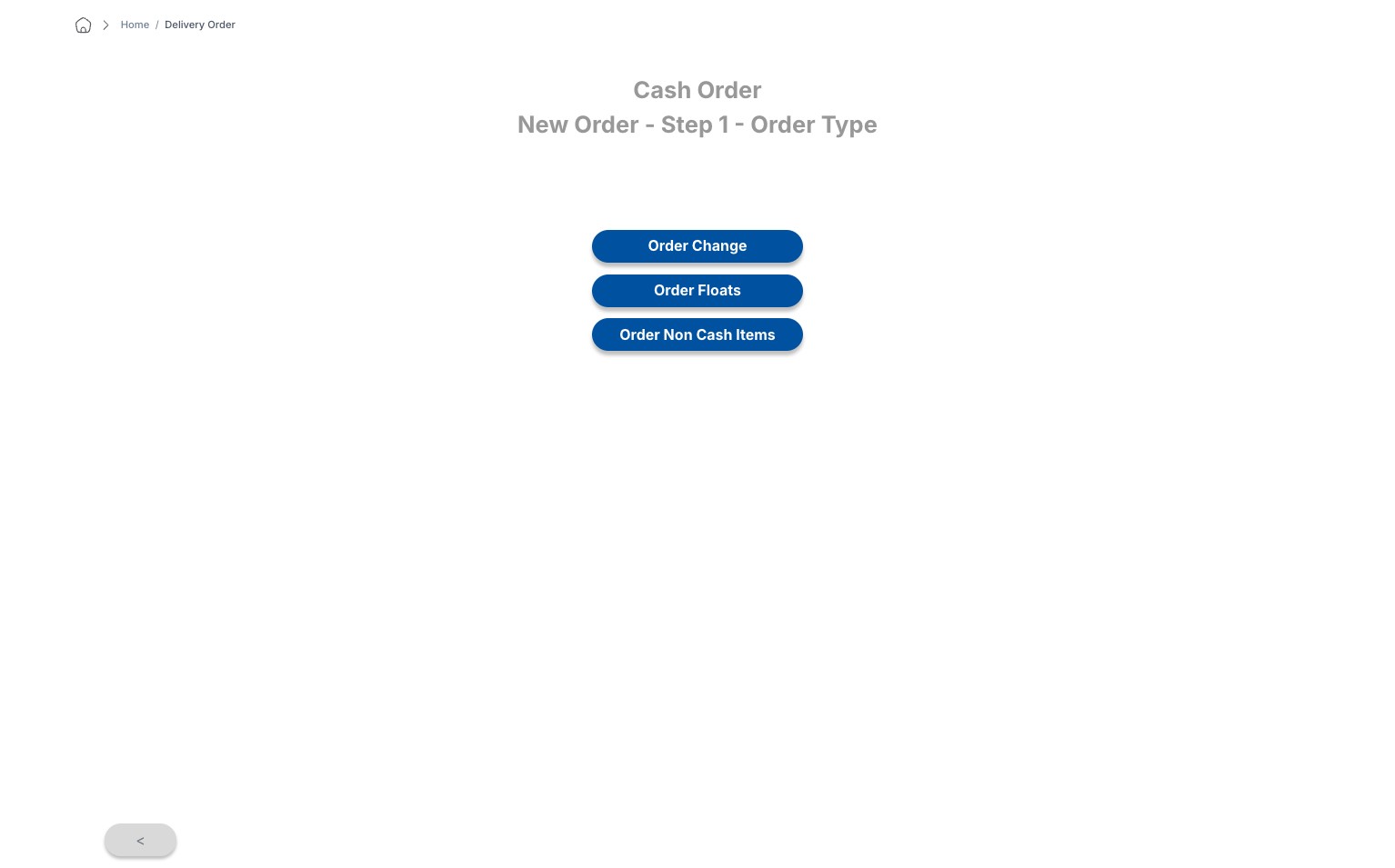
Step 4: Select Order Floats
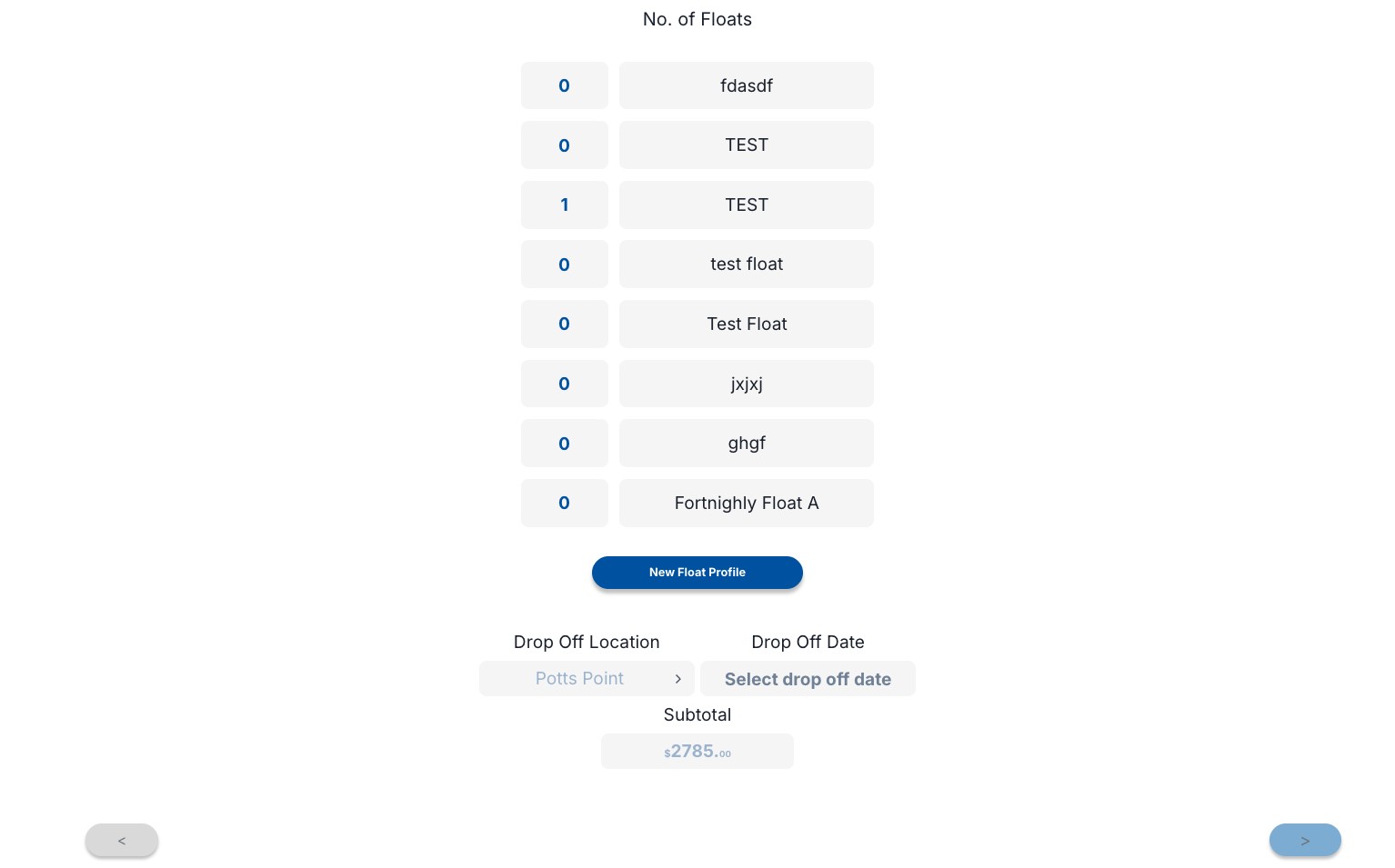
Step 5: Choose Float Profile, Location and Drop Off Date
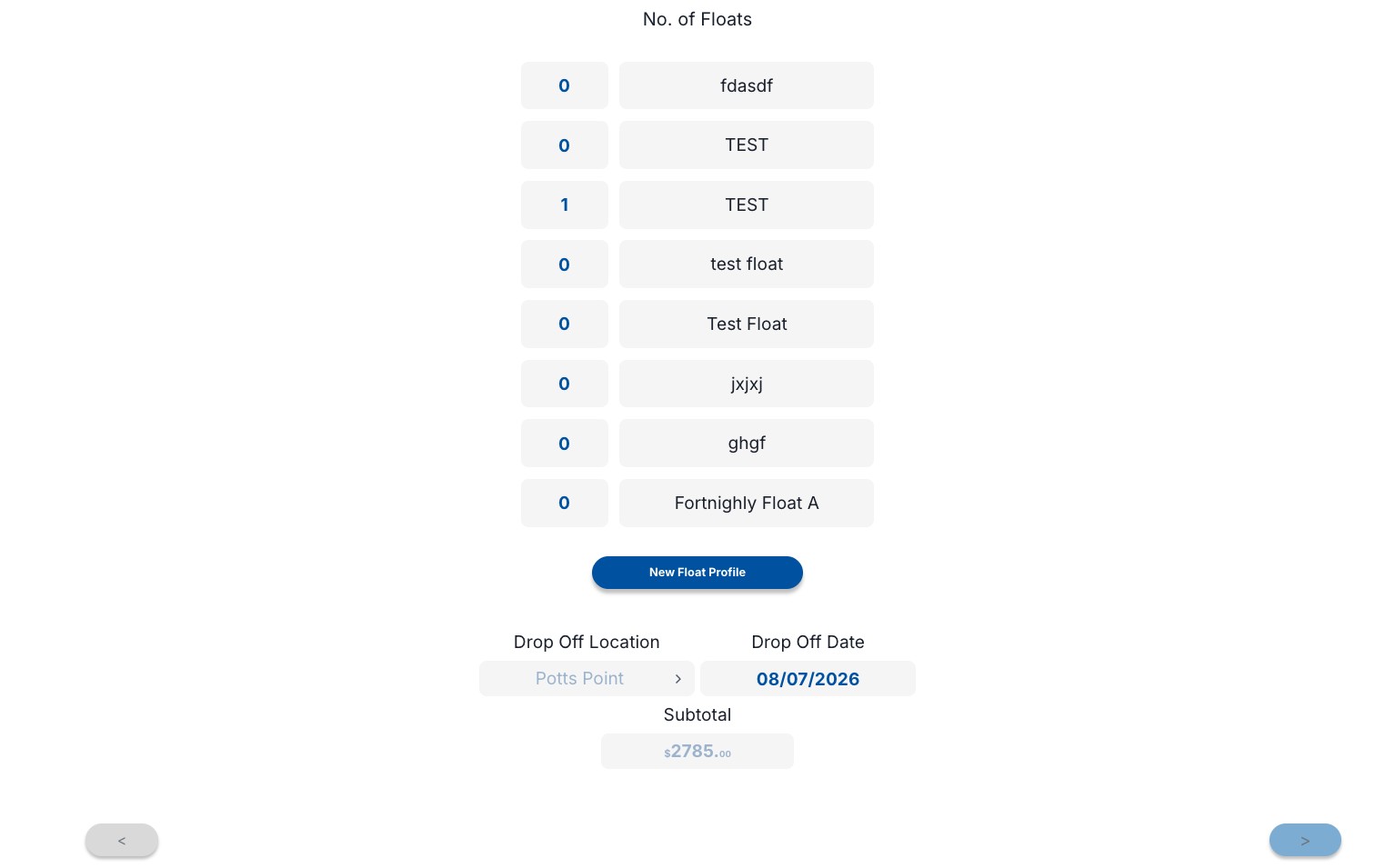
Step 6: Proceed to the Next Step
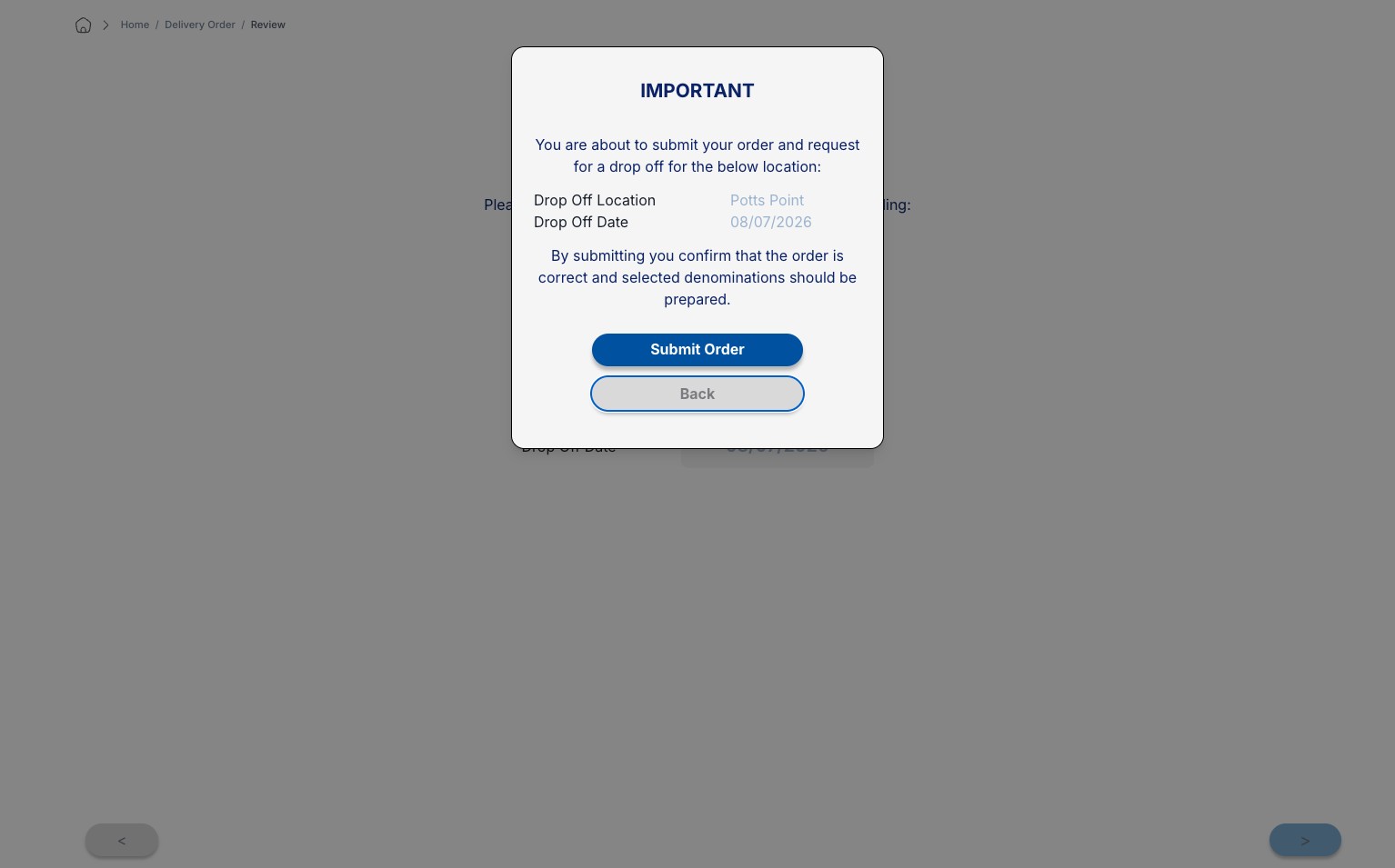
Step 7: Confirm the Float Order
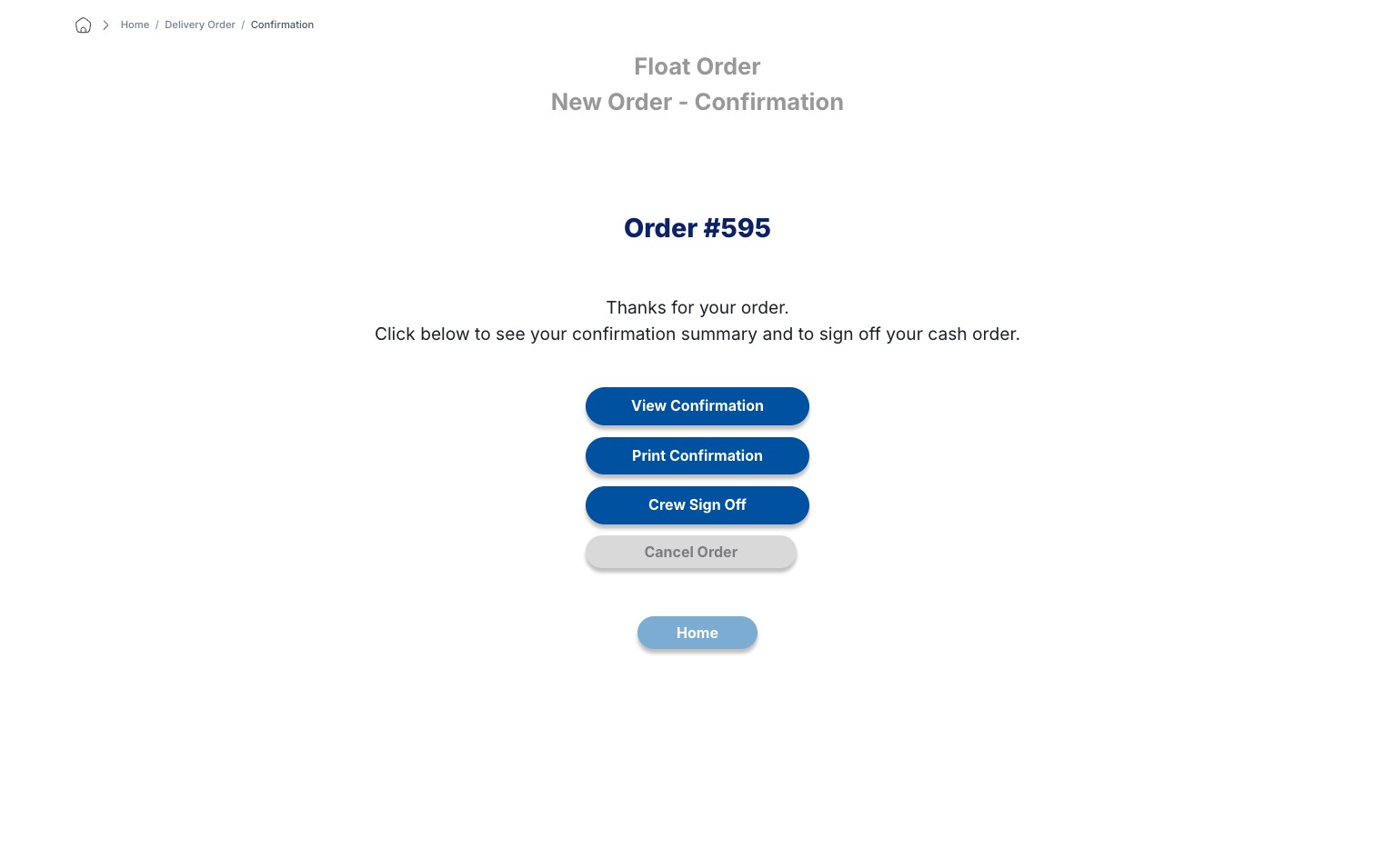
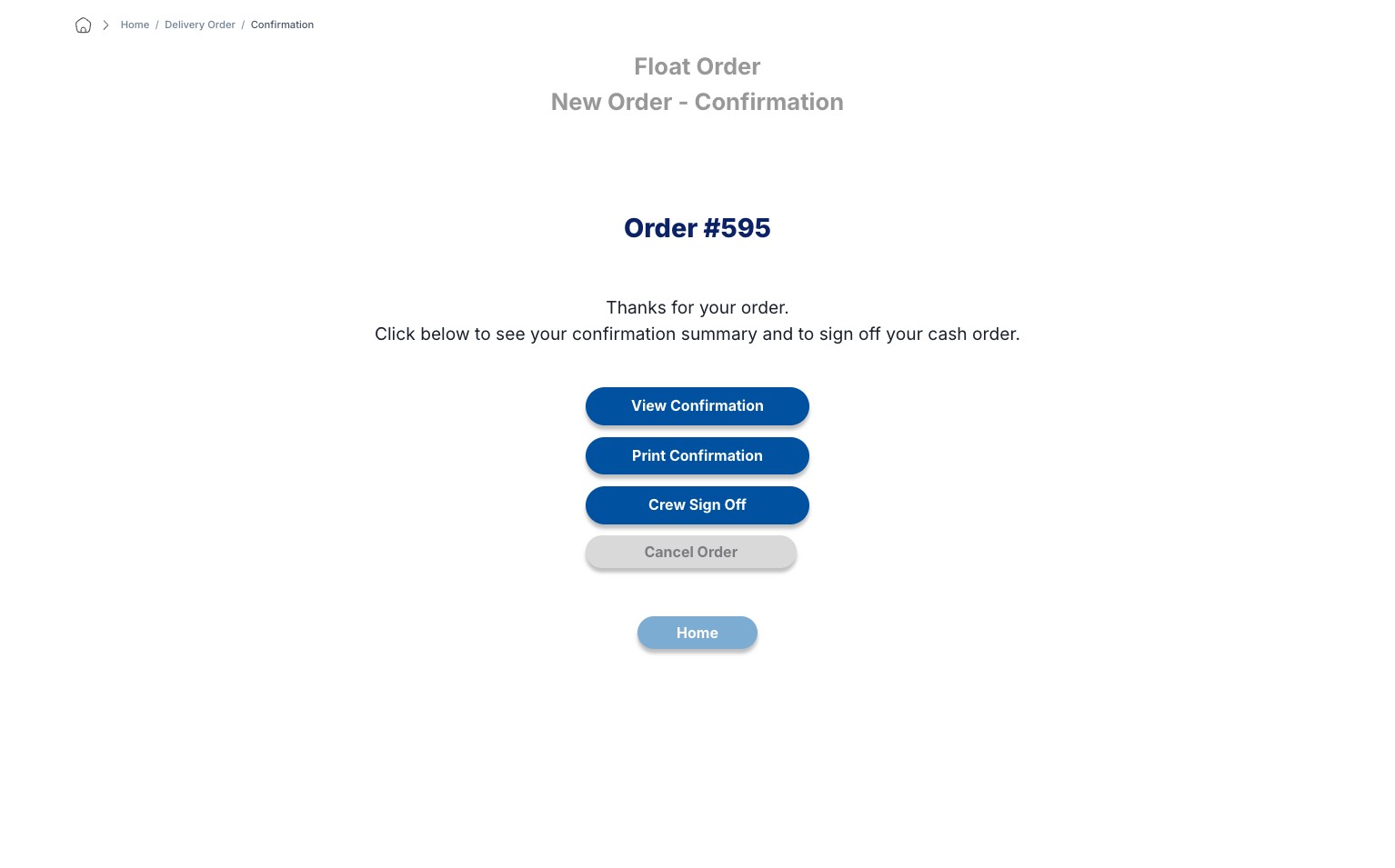
Step 8: Order Confirmed
Once submitted, the Float Order is successfully created.
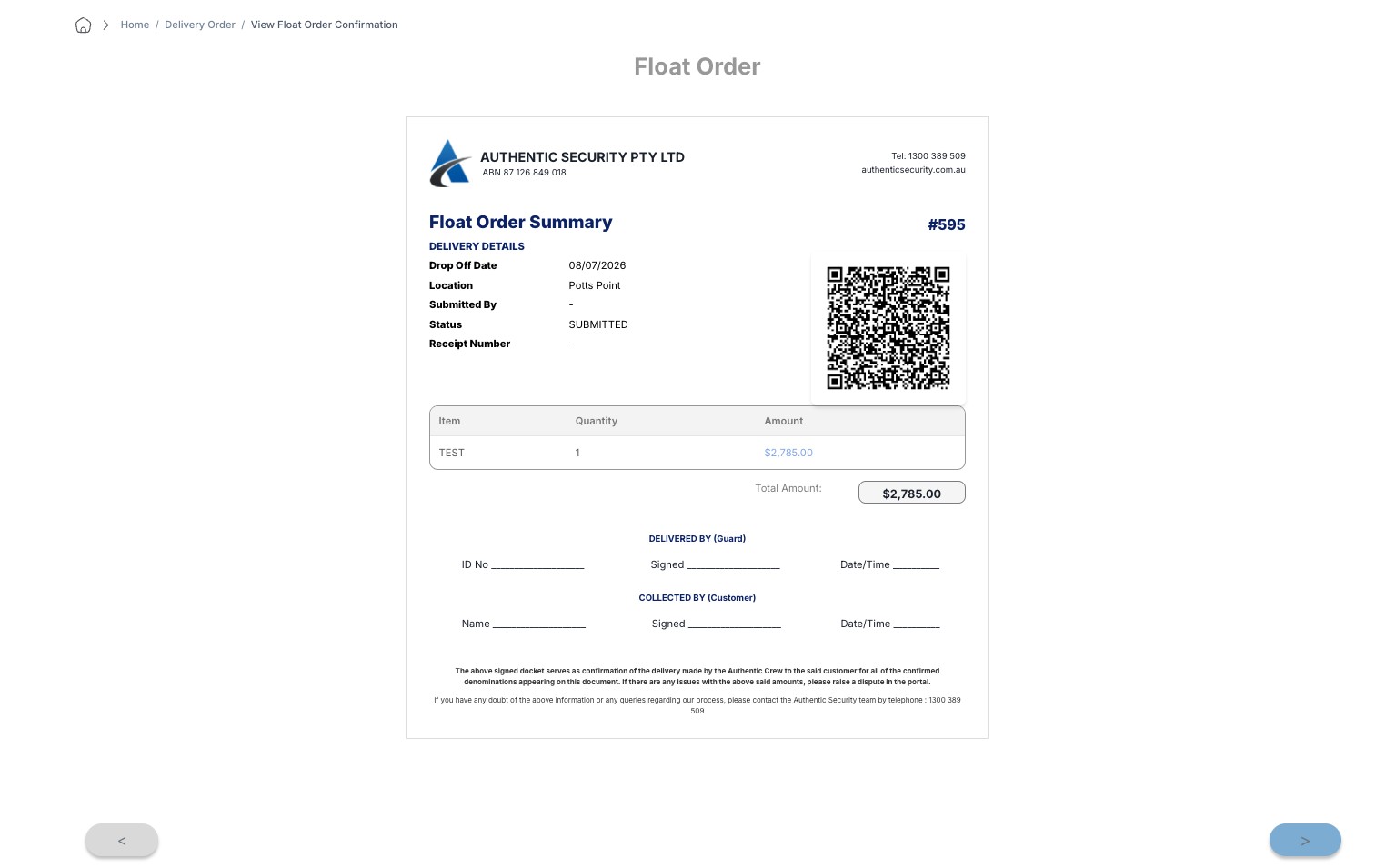
Step 9: View Confirmation Details
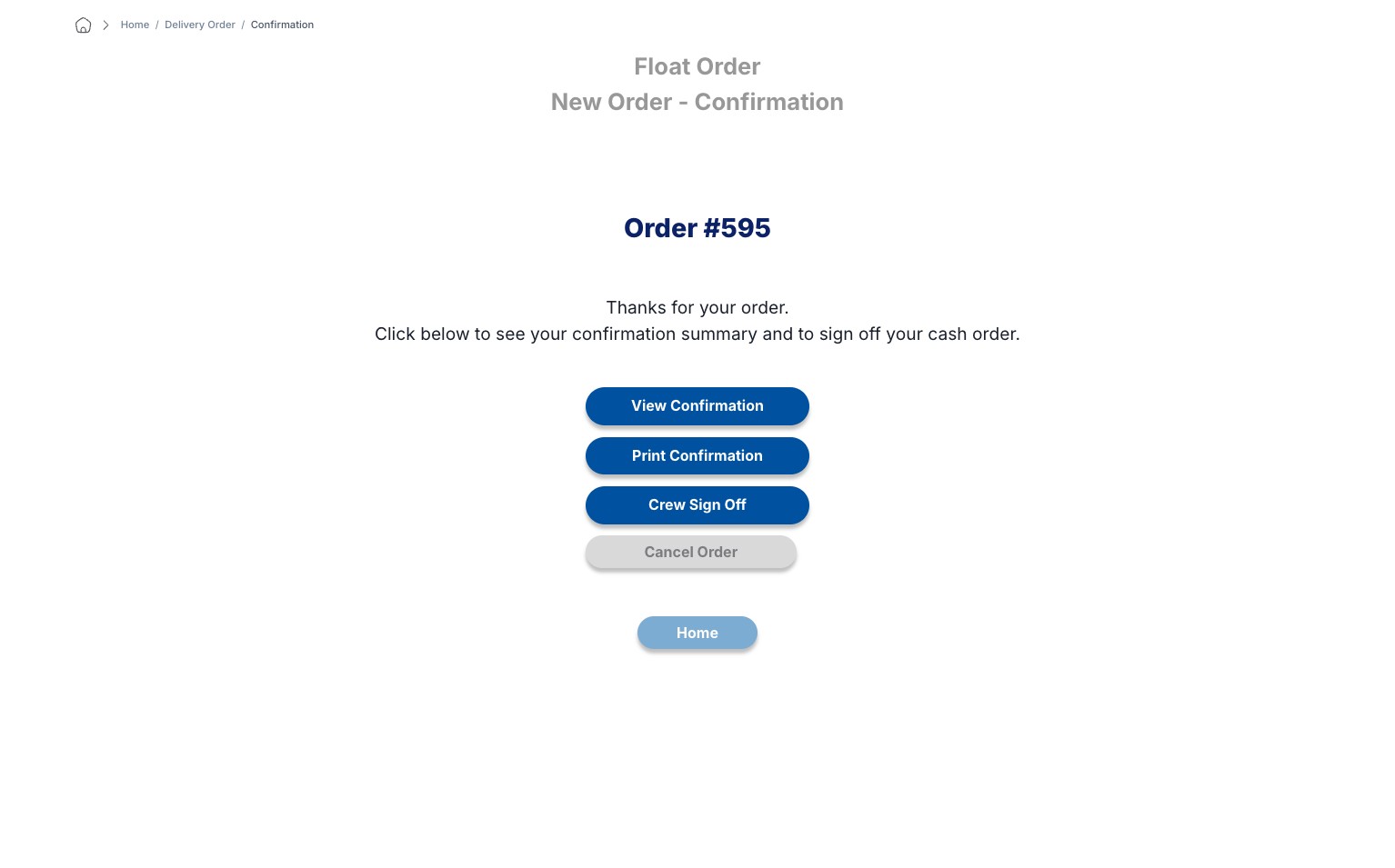
Step 10: Crew Sign Off
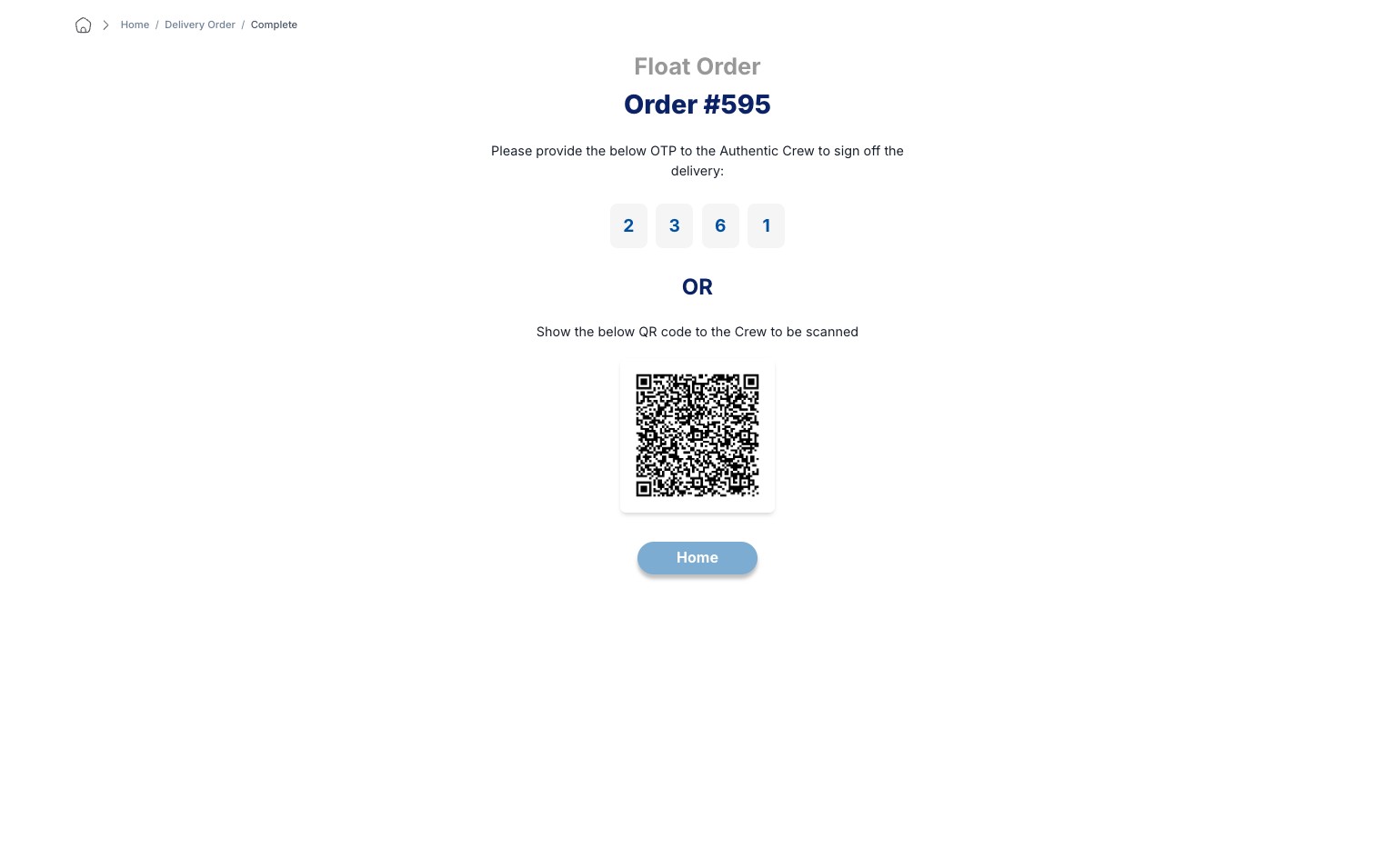
Step 11: OTP and QR for Crew Sign Off
Cancel a Float Order
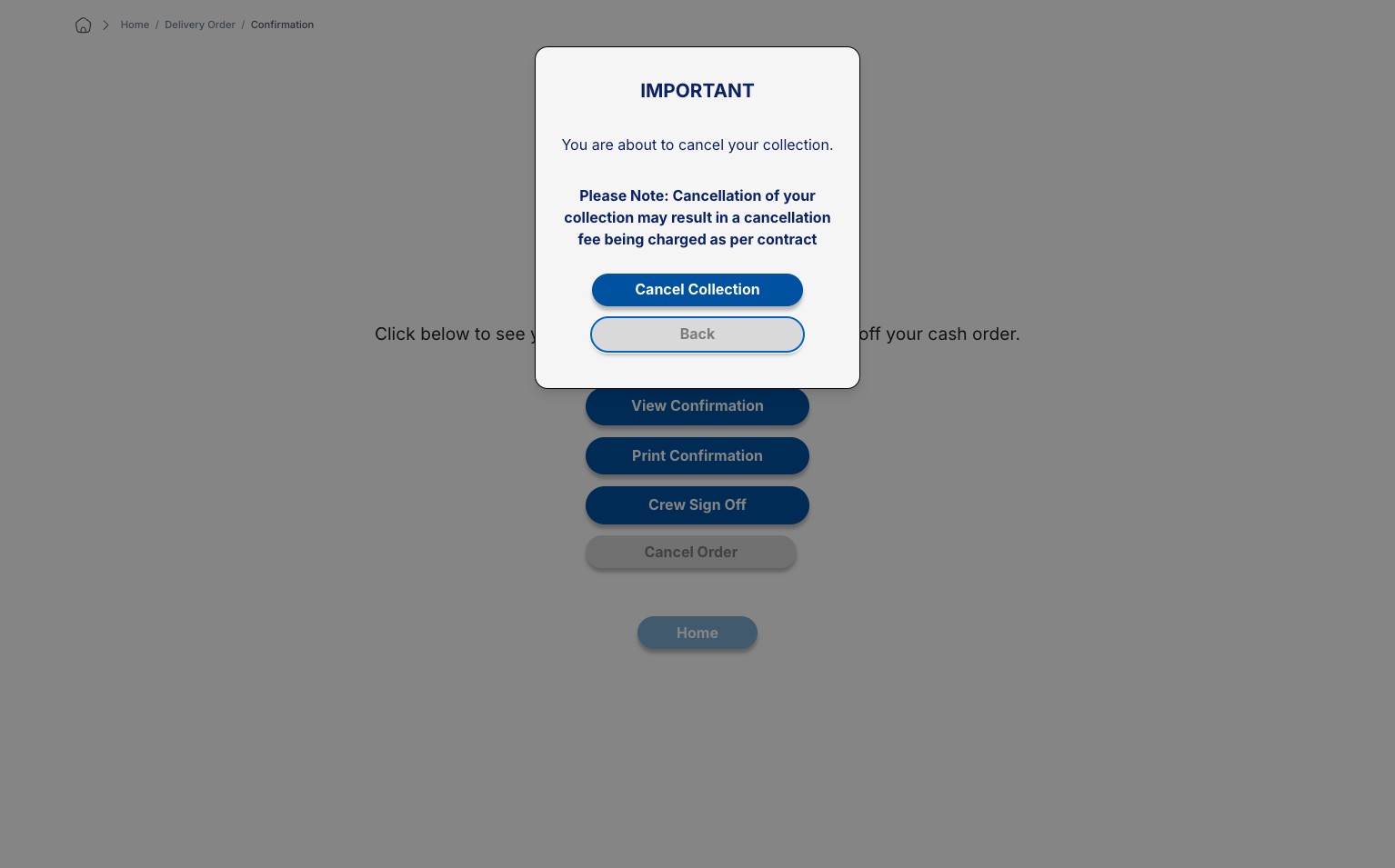
Step 12: Cancel the Order
Step 13: Confirm Cancellation
Step 14: Return to Order List
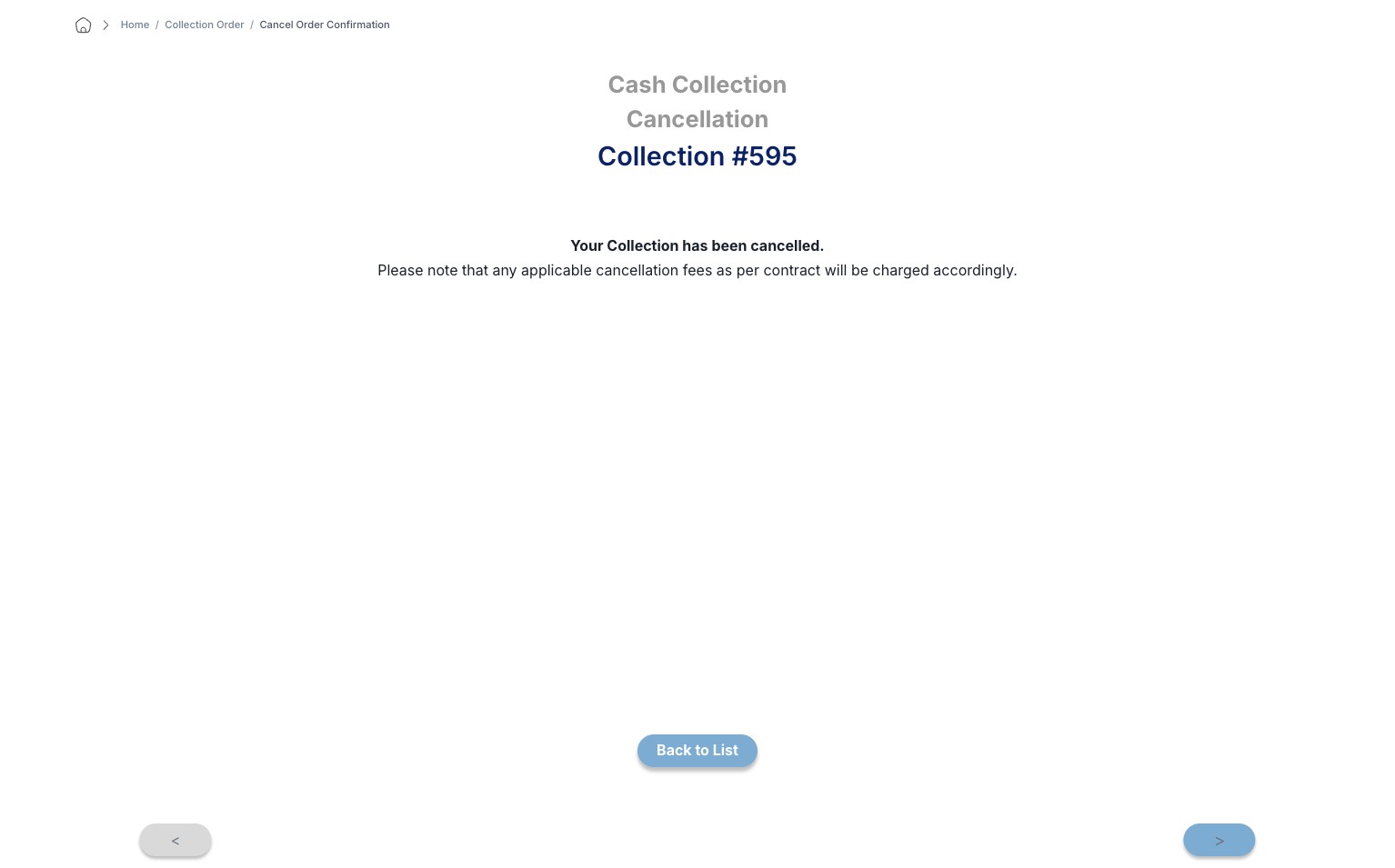
Step 15: Locate the Float Order
The cancelled order is now visible in the Order List.