Cash Order Limit
Each account owner has a Cash Order Limit: the highest total amount they can request in a single cash order. An administrator sets the limit in the Cypher platform, and the Authentic Online customer portal enforces it. The same limit applies to both Order Change and Float Order requests.
Overview
| Item | Details |
|---|---|
| Module | Cypher (Customer Management → Account Owners) and Authentic Online customer portal (Cash Order) |
| Estimated Time | 2–3 minutes to update the limit |
| Workflow | Administrator (set limit in Cypher) → Customer (place Order Change / Float Order in the portal) |
Before You Begin
- Updating the limit is done by an administrator in the Cypher platform, not in the customer portal.
- Placing orders is done by the customer in the Authentic Online customer portal.
- The examples on this page use a limit of 100,000.
Workflow
   Administrator — Cypher
   (Account Owners → Settings → Cash Order Limit → Submit)
                    │
                    ▼
   Customer — Authentic Online portal
   (Scheduled Pickup → Order Change / Order Floats → enter denominations)
                    │
          ┌─────────┴─────────┐
          ▼                   ▼
   Total over limit     Total within limit
          │                   │
          ▼                   ▼
   Order blocked        Order created
   (error message)            │
                              ▼
                    Submit Order → Finalised
Administrator — Update the Cash Order Limit
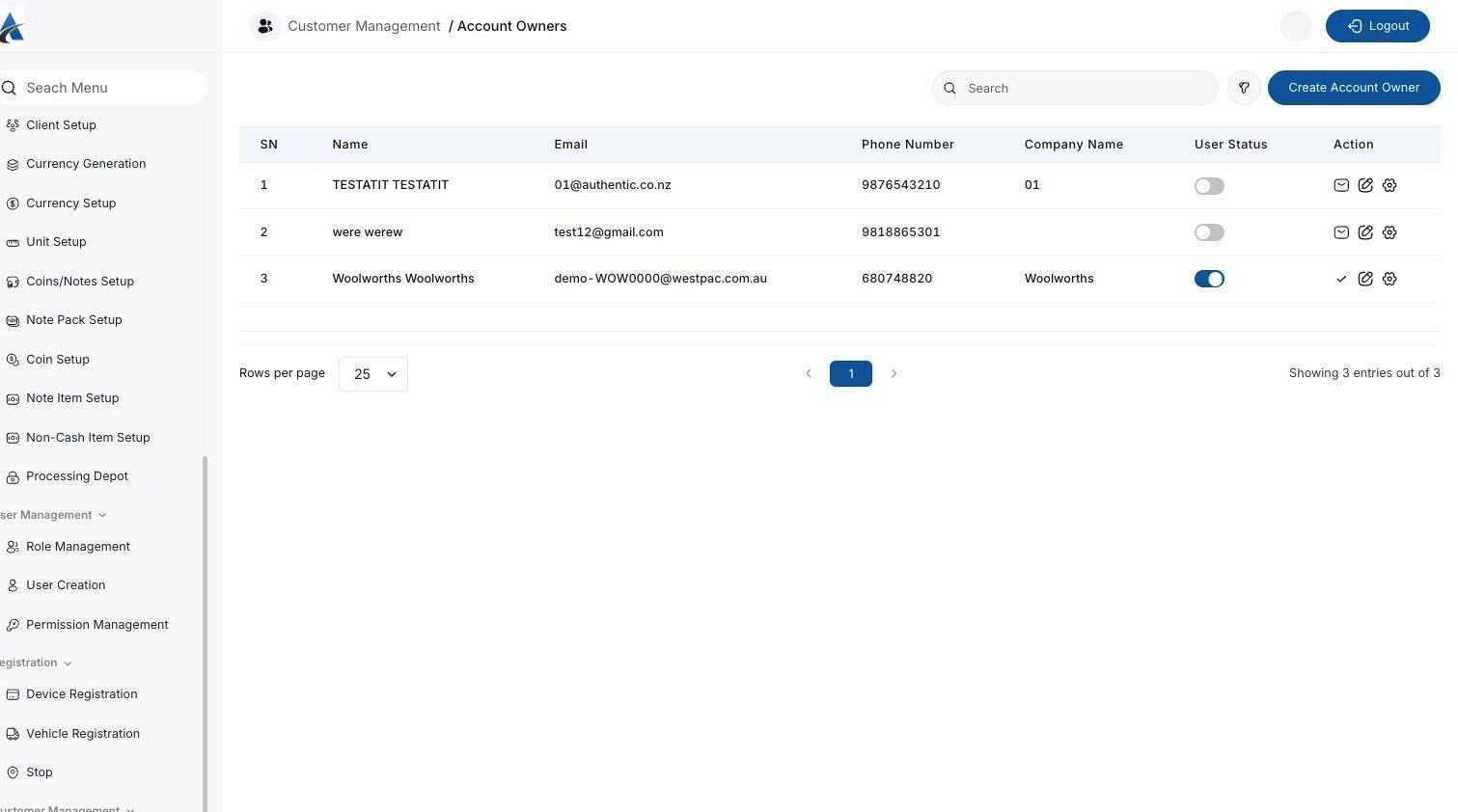
Step 1: Open the Account Owners Page
In Cypher, go to Customer Management → Account Owners. This page lists the account owners whose Cash Order Limit you manage.
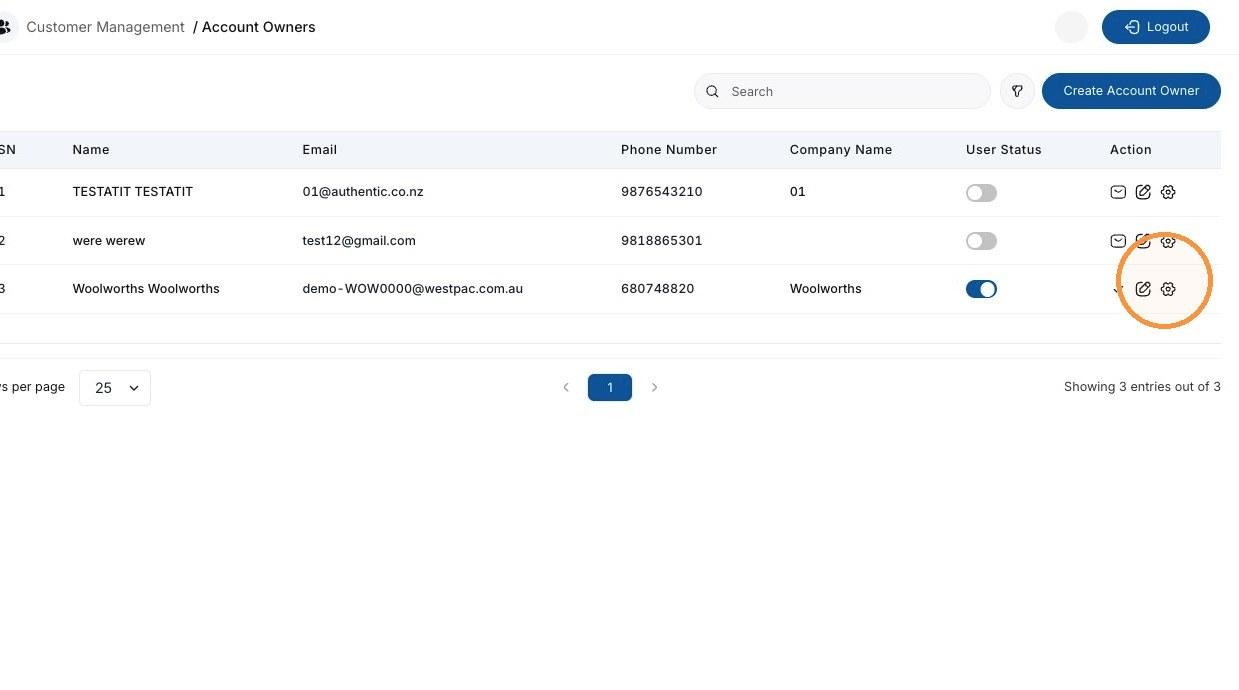
Step 2: Open the Settings
Click the Settings icon (the gear) next to the account owner you want to update.
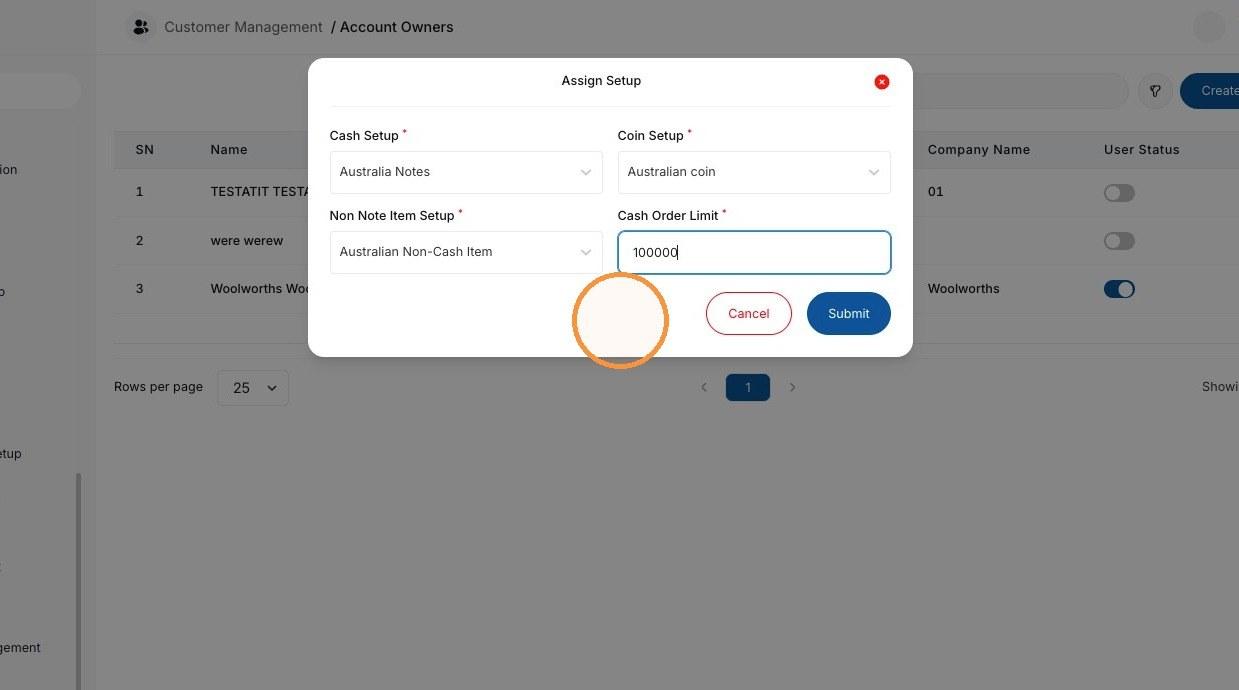
Step 3: Set the New Limit
The Assign Setup dialog opens. Change the Cash Order Limit amount as required, then click Submit. In this example, the limit is set to 100,000.
Customer — Place an Order Change Within the Limit
Step 4: Go to the Customer Portal
Open the Authentic Online customer portal.
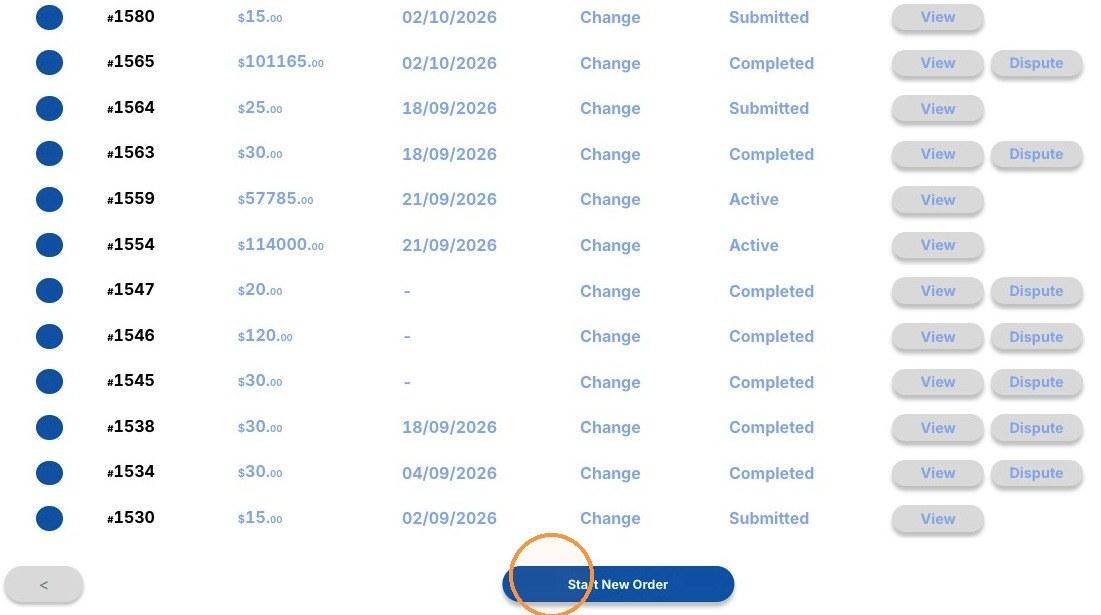
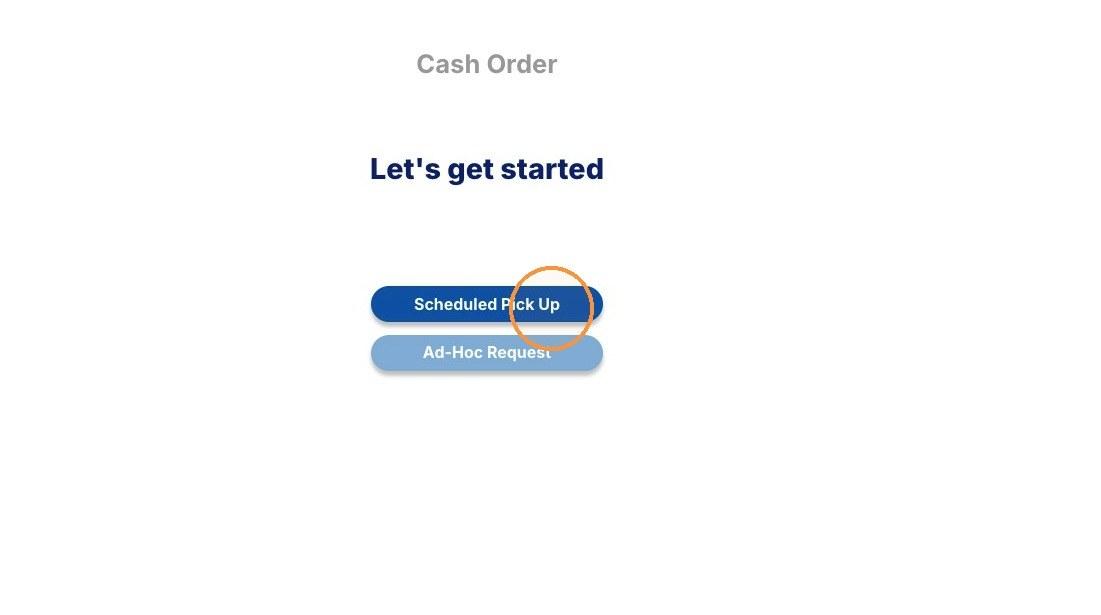
Step 5: Choose Scheduled Pickup
On the Cash Order start screen, choose Scheduled Pickup.
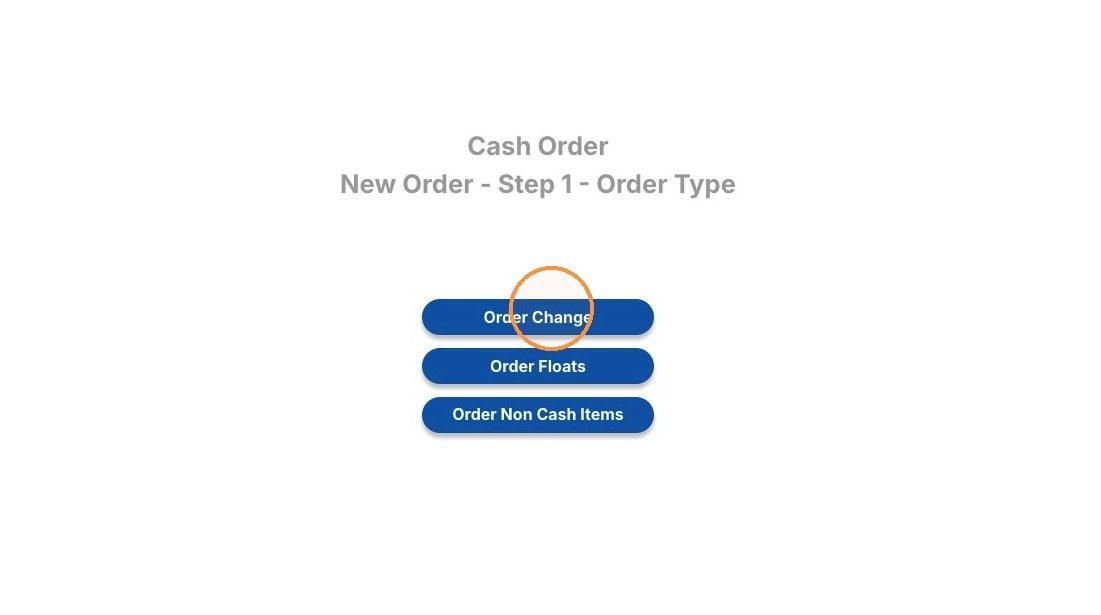
Step 6: Choose Order Change
From the order type list, choose Order Change.
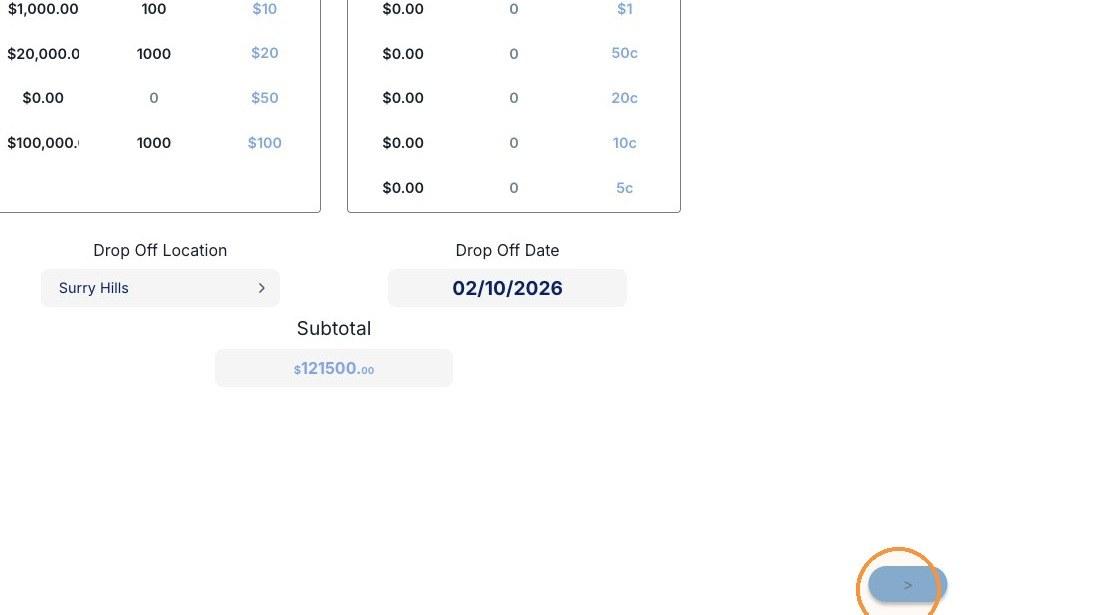
Step 7: Enter an Amount Over the Limit
Enter denominations that add up to more than 100,000.
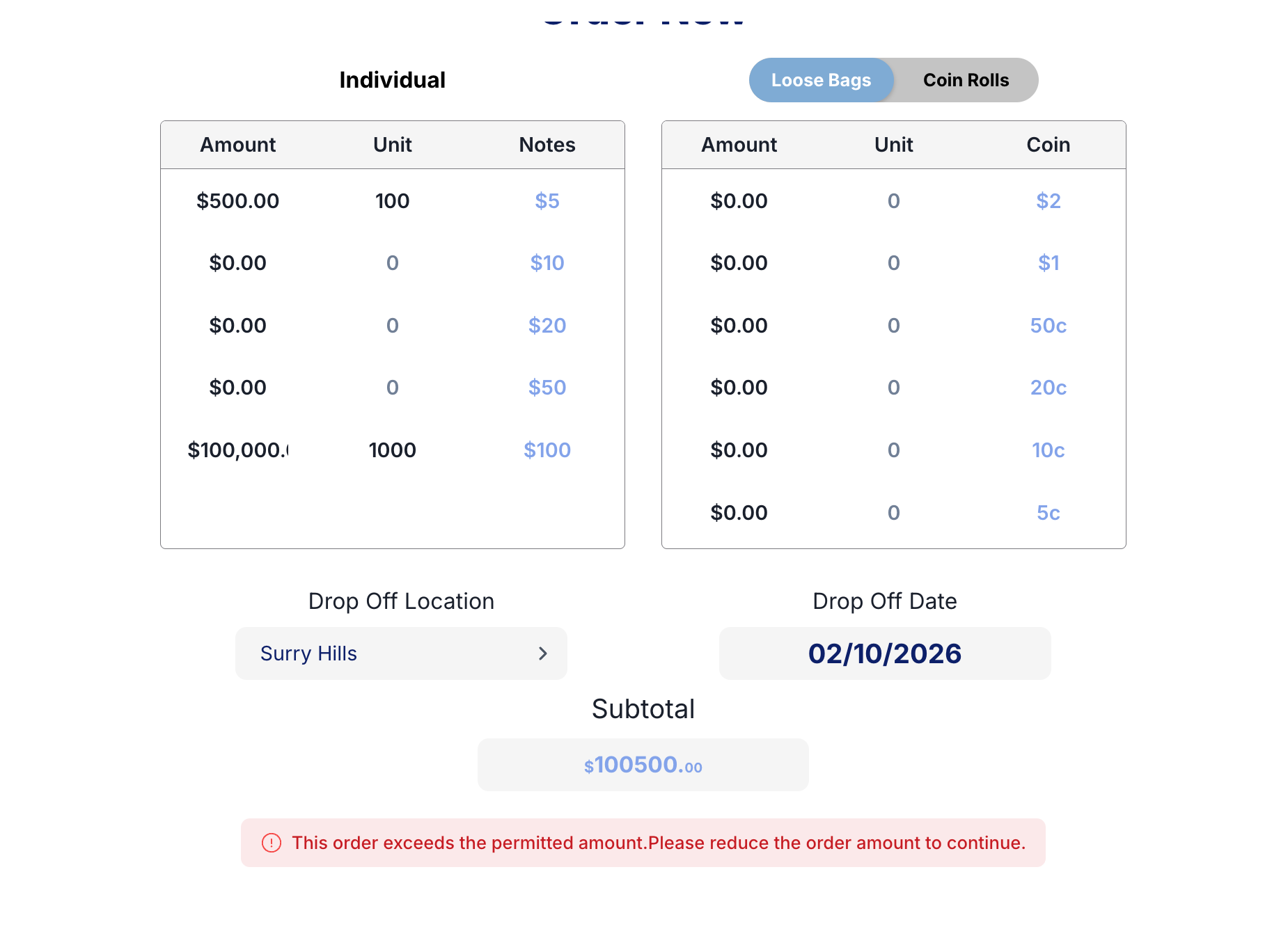
Step 8: The Order Is Blocked
Because the subtotal ($100,500 in this example) is over the limit, the portal shows an error message below it and the order cannot continue.
Over the limit This order exceeds the permitted amount. Please reduce the order amount to continue.
Step 9: Enter an Amount Within the Limit
Change the denominations so the total is less than 100,000, then submit.
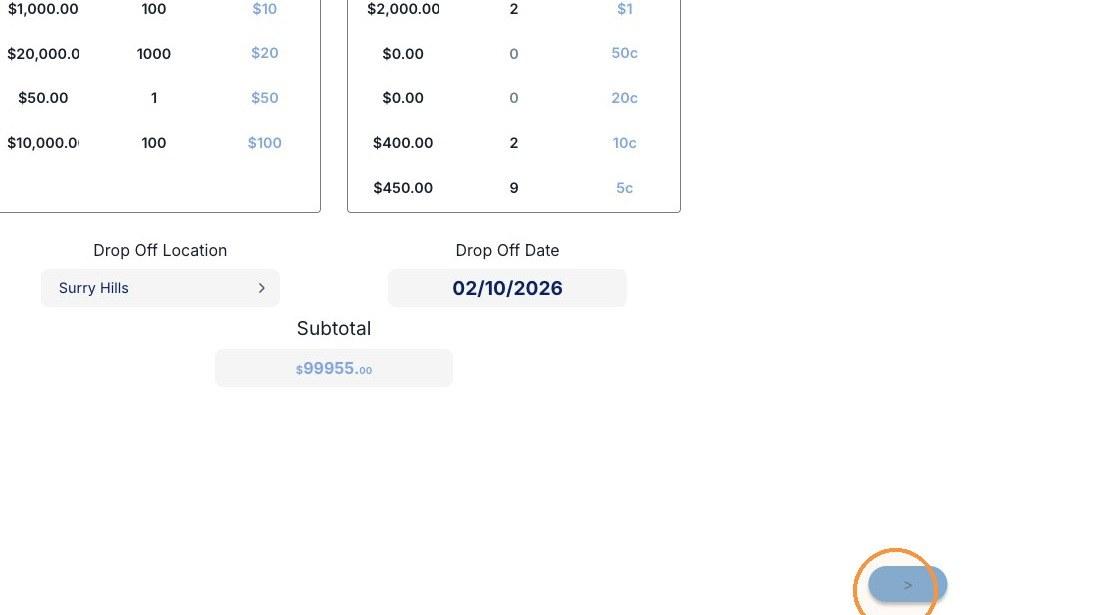
Step 10: Order Change Created
The portal confirms that the Order Change was created.
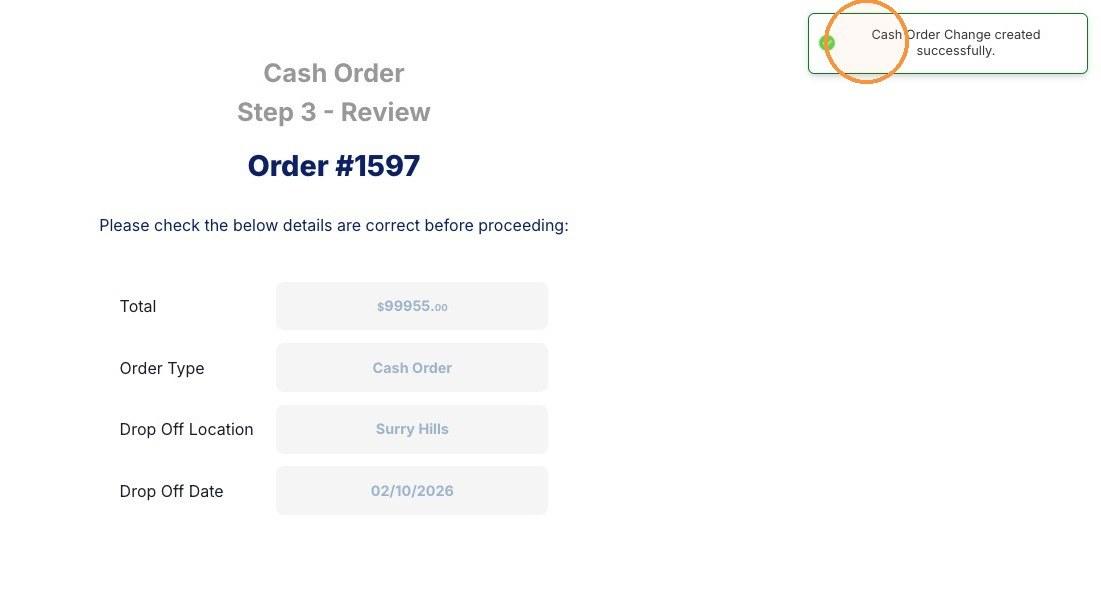
Request submitted Cash Order Change created successfully.
Step 11: Check Your Order Number
The review screen shows the new order number. In this example, it is Order #1597.
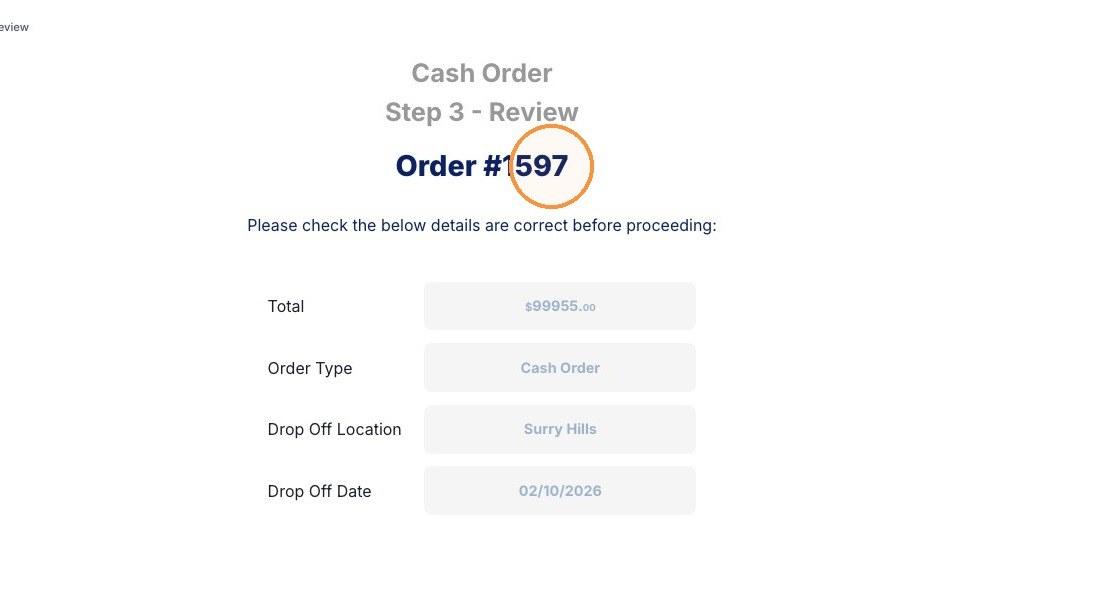
Step 12: Finalise the Order
Click Submit Order in the confirmation dialog to finalise it.
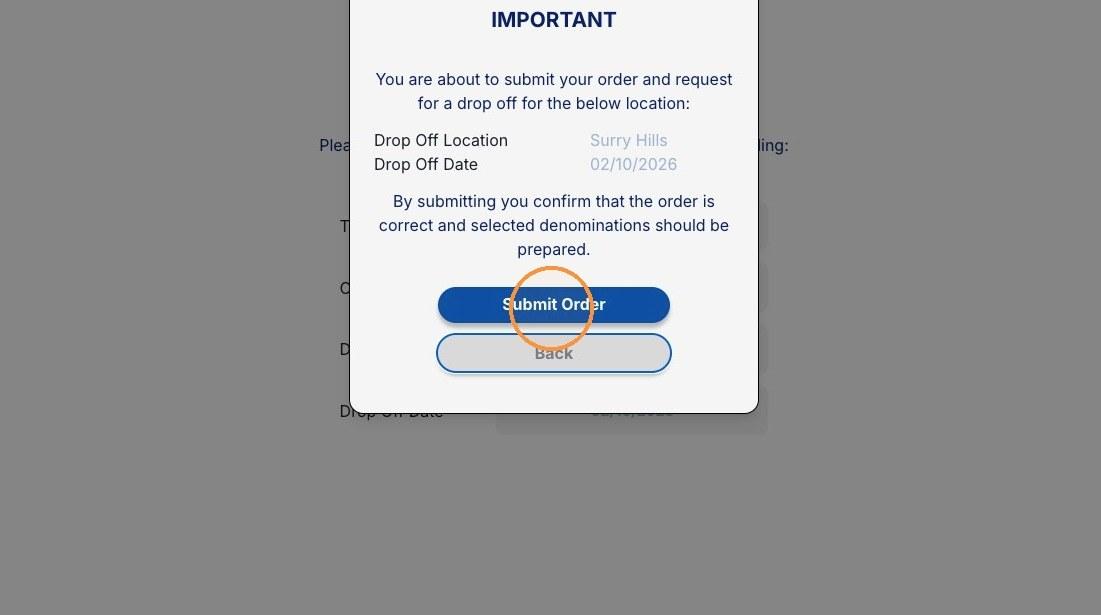
💵 Customer — Place a Float Order Within the Limit
Step 13: Start a New Float Order
Create a new order and choose Order Floats.
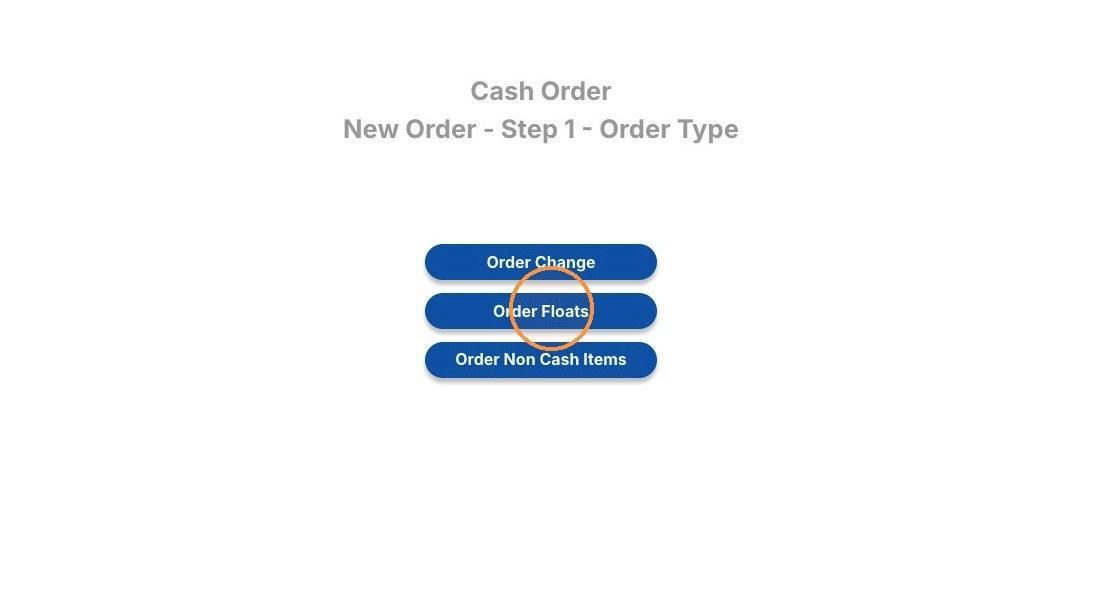
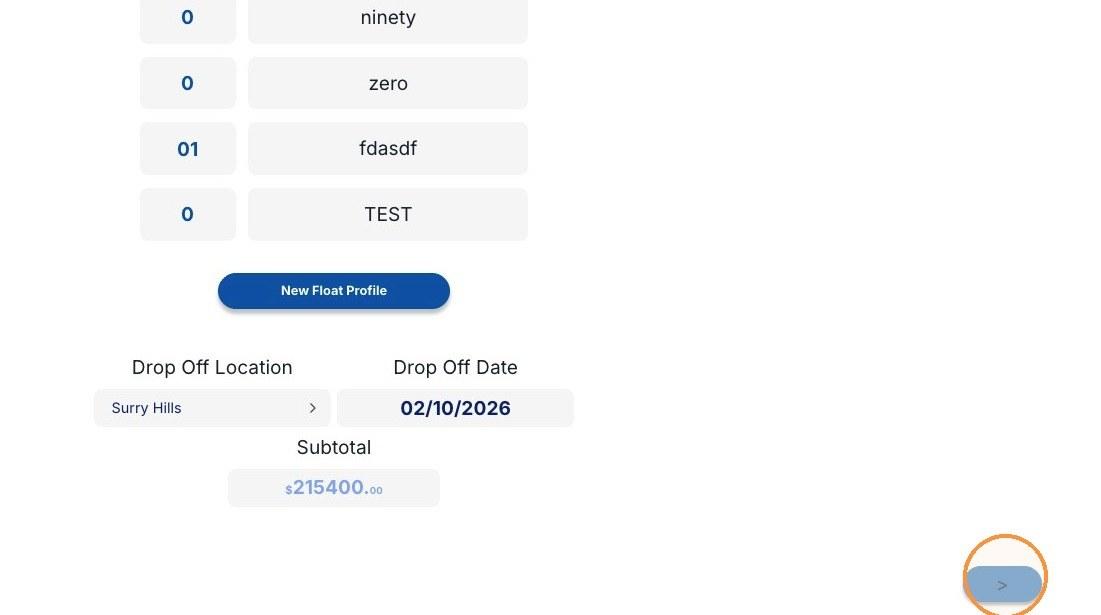
Step 14: Enter an Amount Over the Limit
Again, enter denominations that add up to more than 100,000.
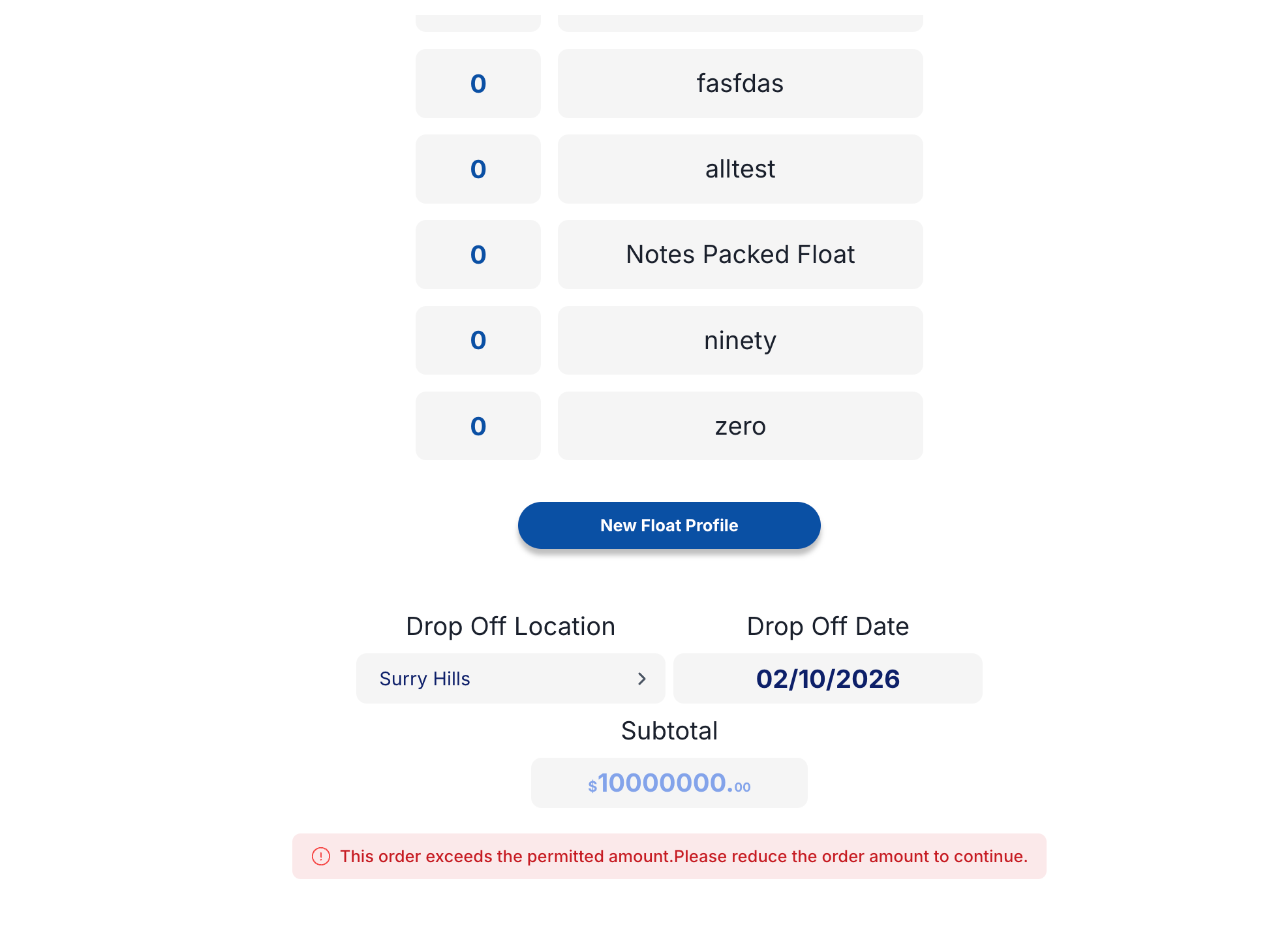
Step 15: The Order Is Blocked
Just like the Order Change, the portal shows an error message below the subtotal.
Over the limit This order exceeds the permitted amount. Please reduce the order amount to continue.
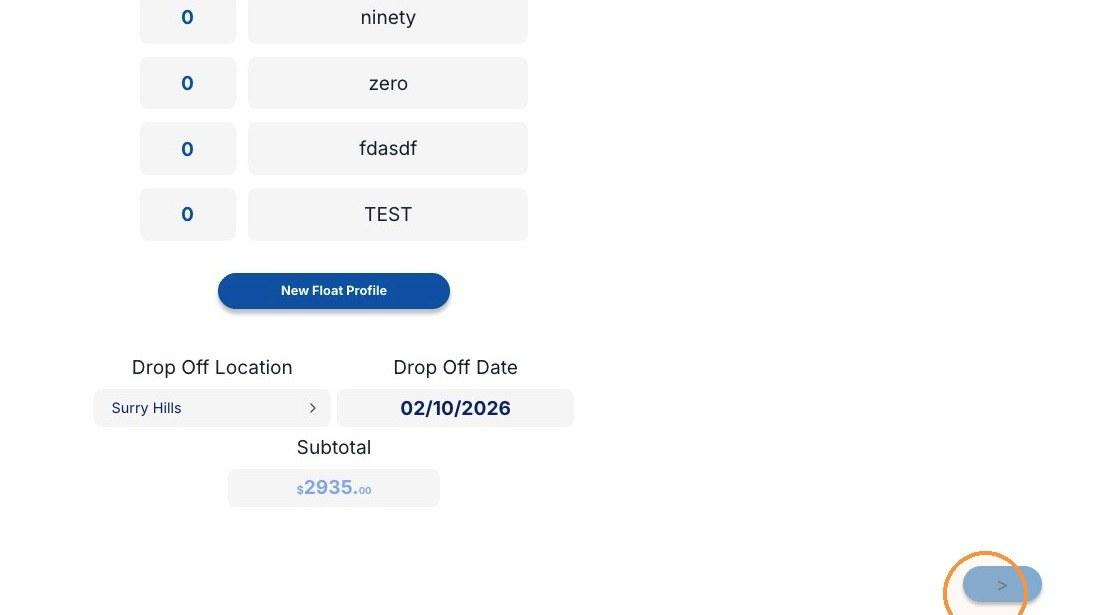
Step 16: Enter an Amount Within the Limit
Change the denominations so the total is less than 100,000.
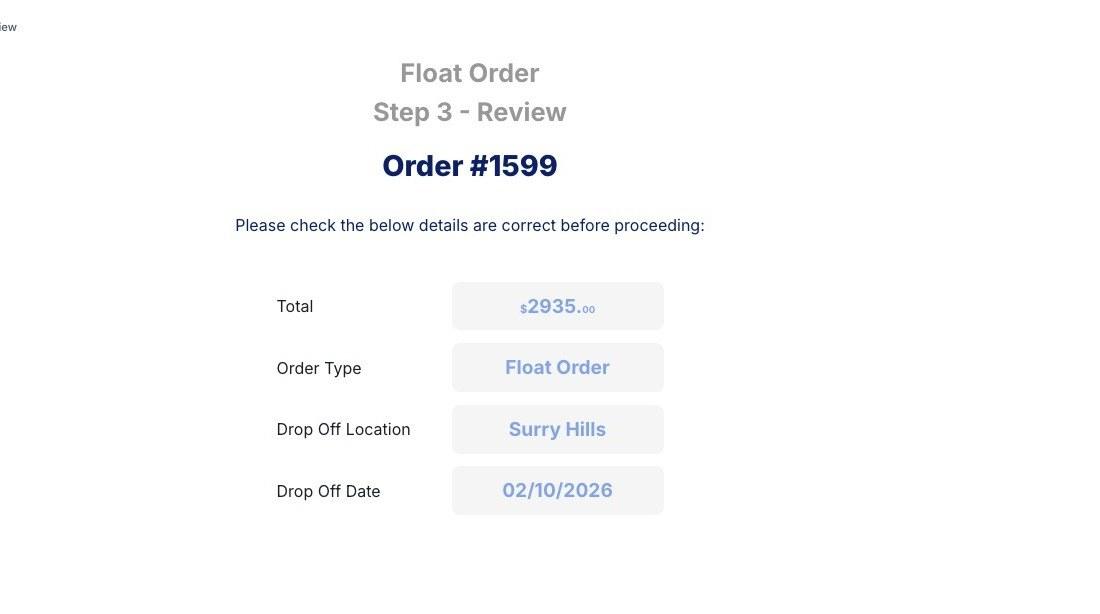
Step 17: Check Your Order Number
The review screen shows the new order number. In this example, it is Order #1599.
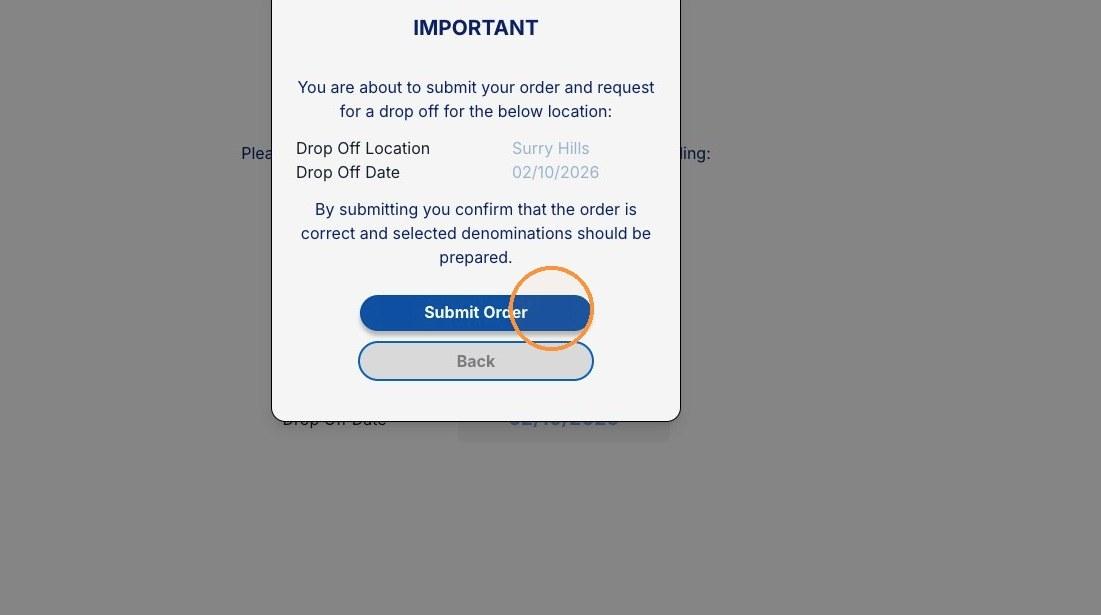
Step 18: Finalise the Order
Click Submit Order in the confirmation dialog to finalise it.
Step 19: Done
The portal confirms that the Float Order was submitted.
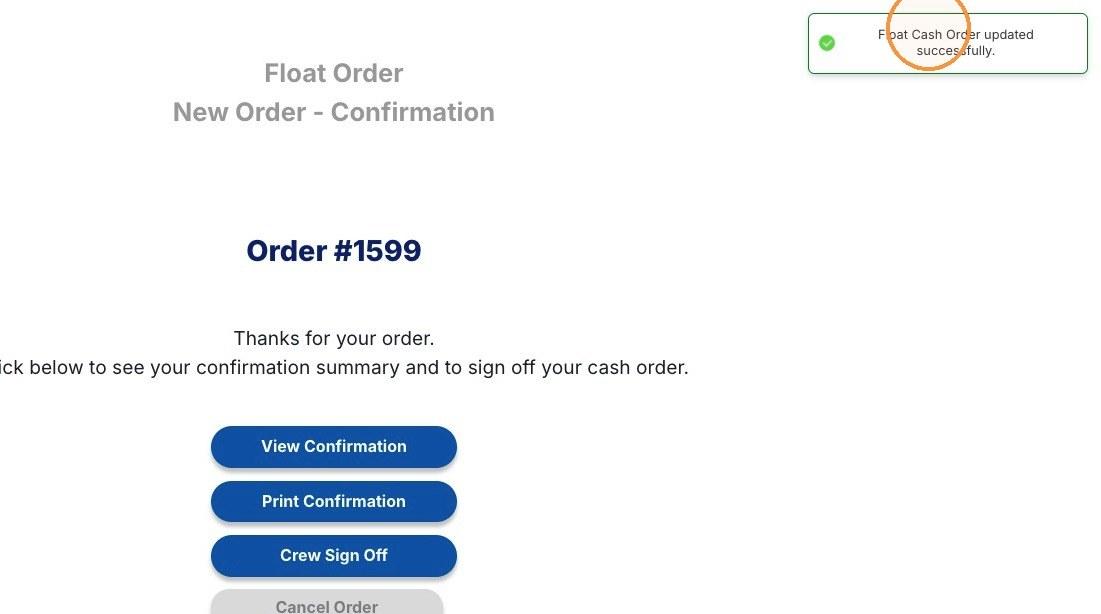
Order submitted Float Cash Order updated successfully.
Quick Recap
- An administrator sets the Cash Order Limit for an account owner in Cypher.
- Any Order Change or Float Order over the limit is blocked with an error message.
- Orders that stay within the limit are placed and finalised as normal.