Cash Collection: Run Assignment
This guide covers Phase 1-3 for managing Cash In Transit (CIT) portal assignments, filtering orders, and creating runsheets.
Prerequisites Ensure you have the necessary Dispatcher or Operations Manager permissions before attempting to assign runs.
Phase 1: Locating & Filtering Orders
Step 1: Access the Portal
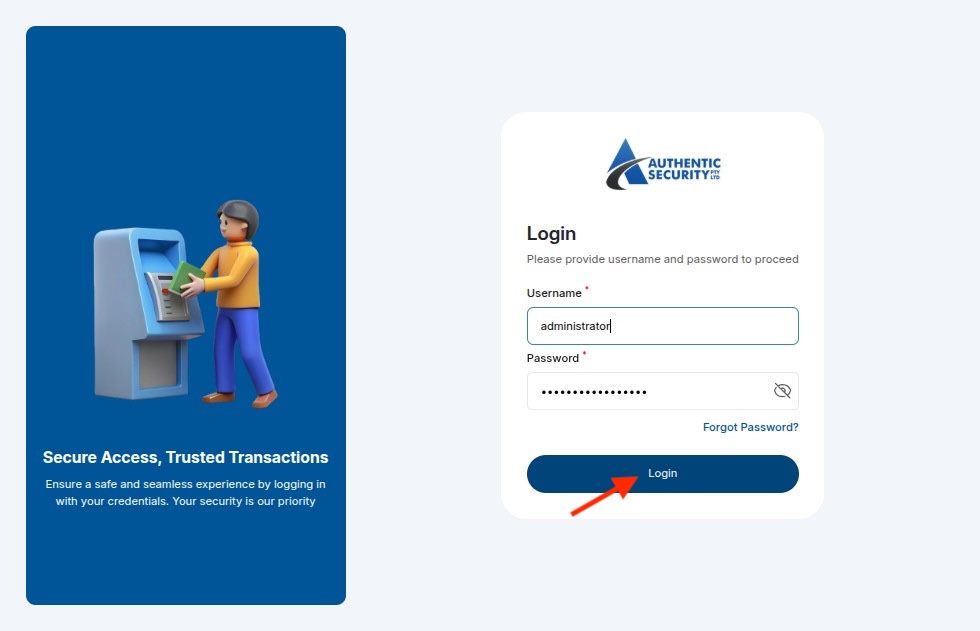
Log in to the portal.
Step 2: Navigate to Orders and Apply Filters
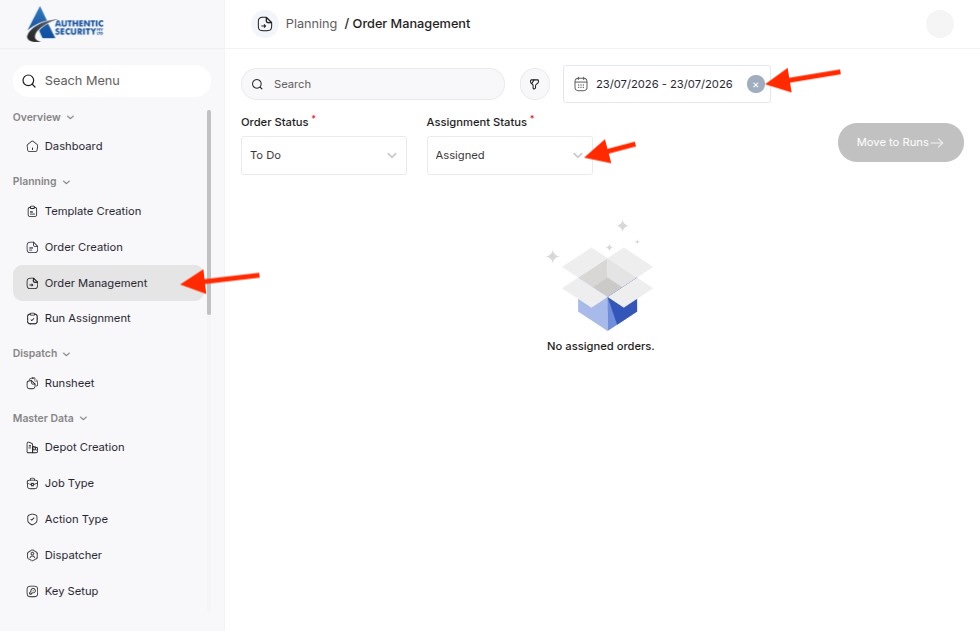
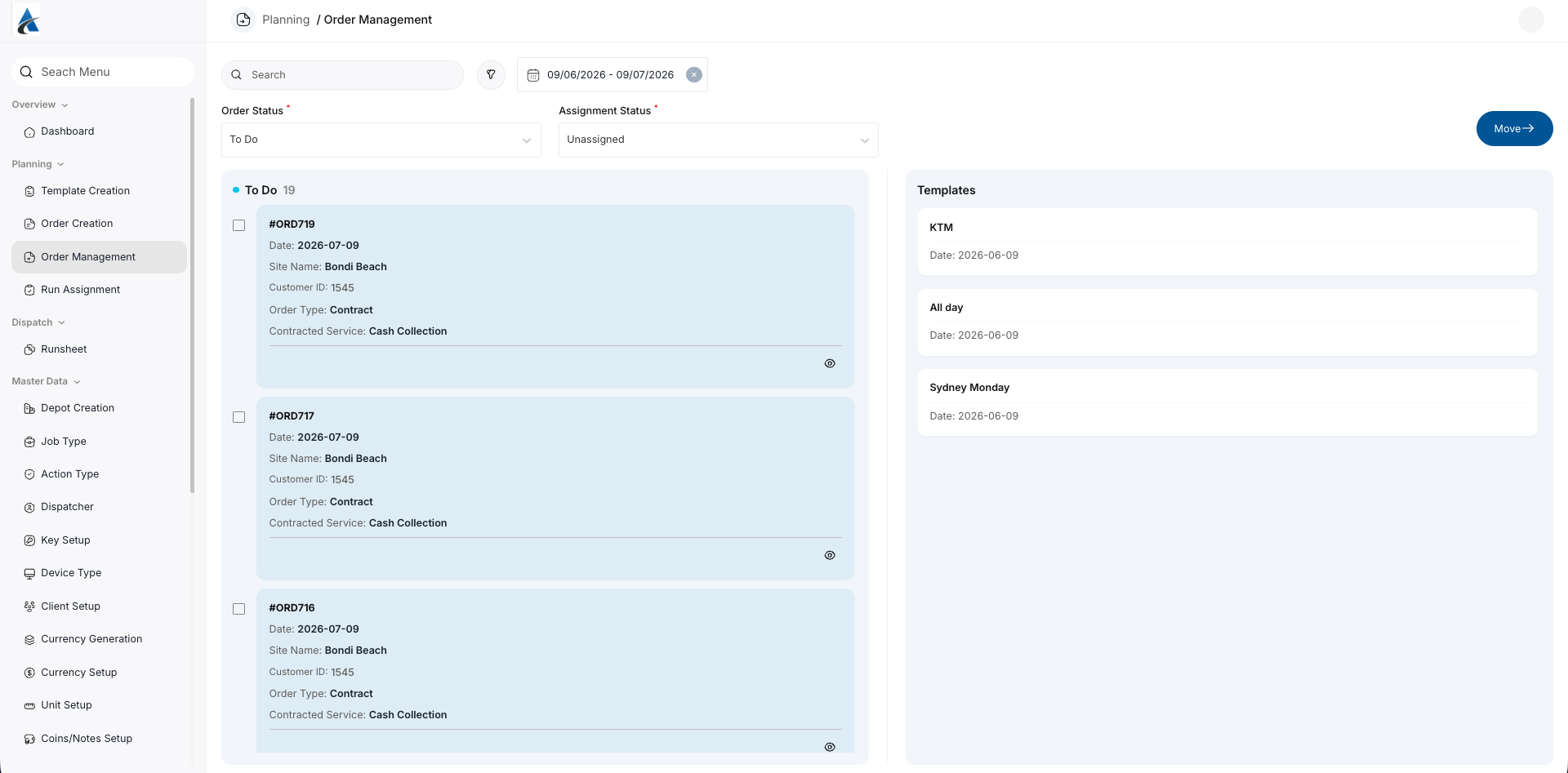
From the main sidebar navigation dashboard, go to Order Management and apply the relevant filters to locate the desired order(s). Use the date picker tool to apply the relevant Date Filter based on your target pickup date.
Step 3: View the Records
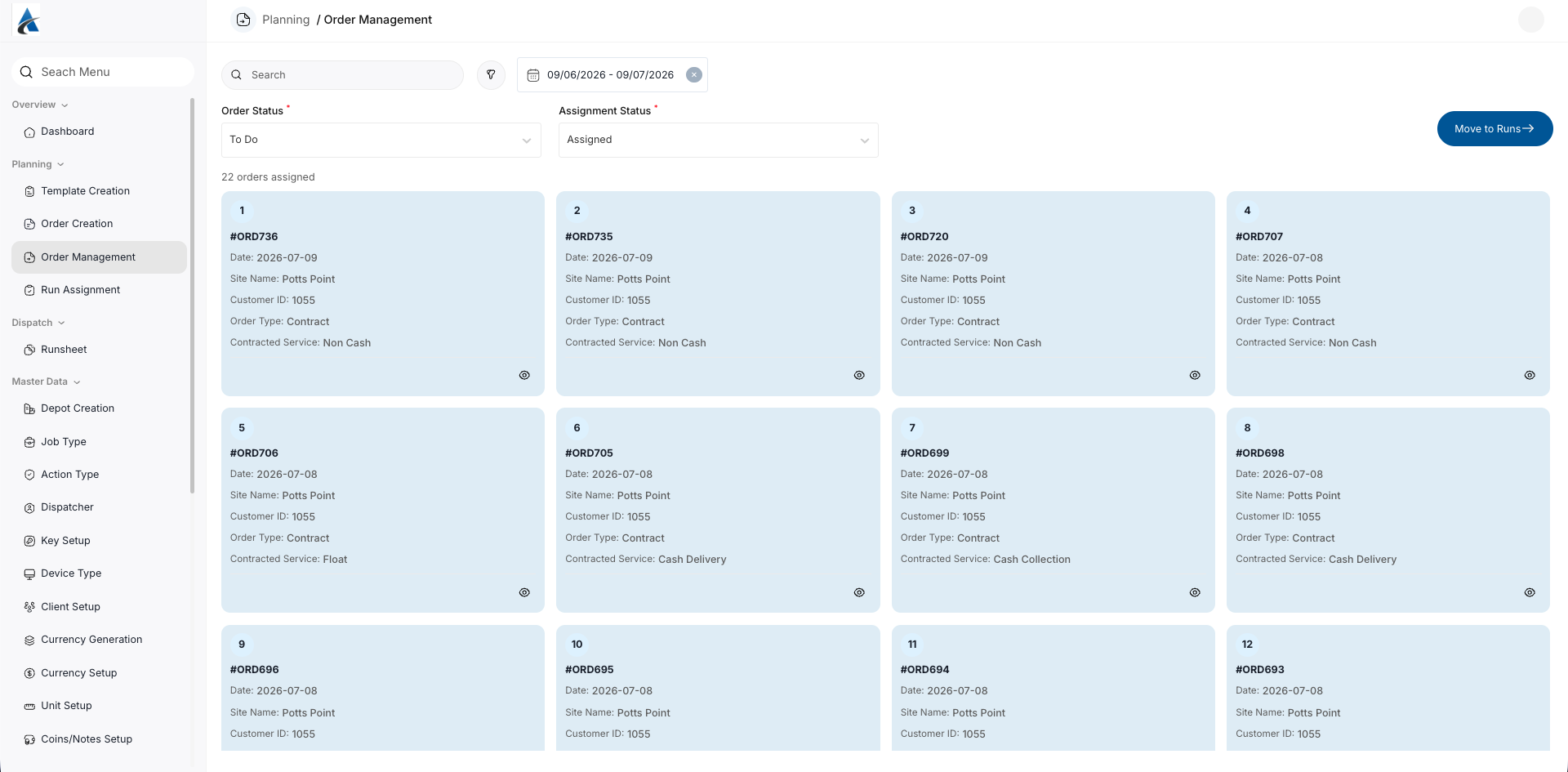
After assigning the filters you can see the records like this. One is the Unassigned order and the other is the Assigned order.
Phase 2: Creating and Assigning the Run
Step 1: Select and Move Order
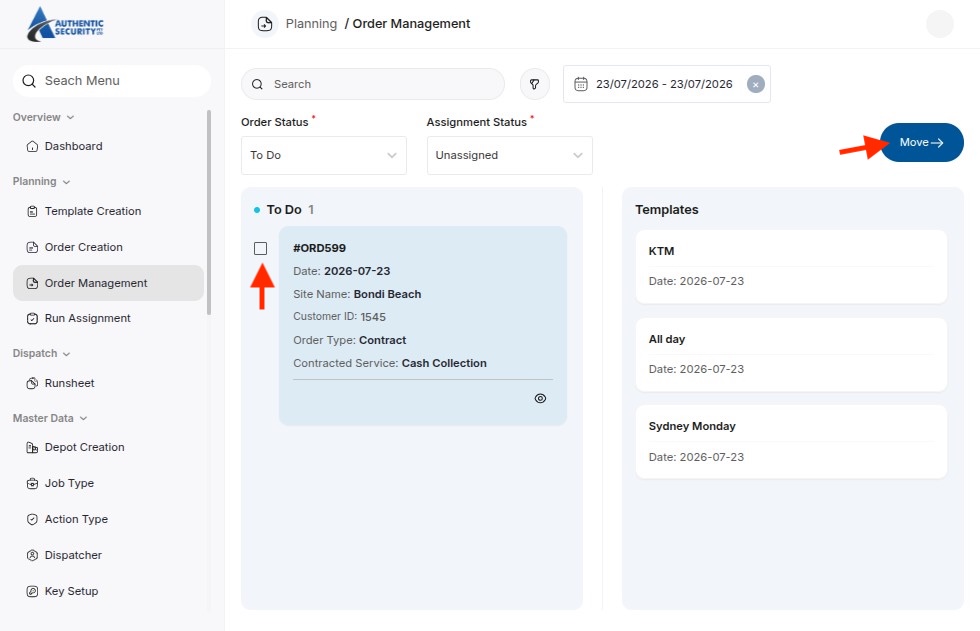
Check the box next to the desired order(s) and click the Move button.
Step 2: Allocate to a Run
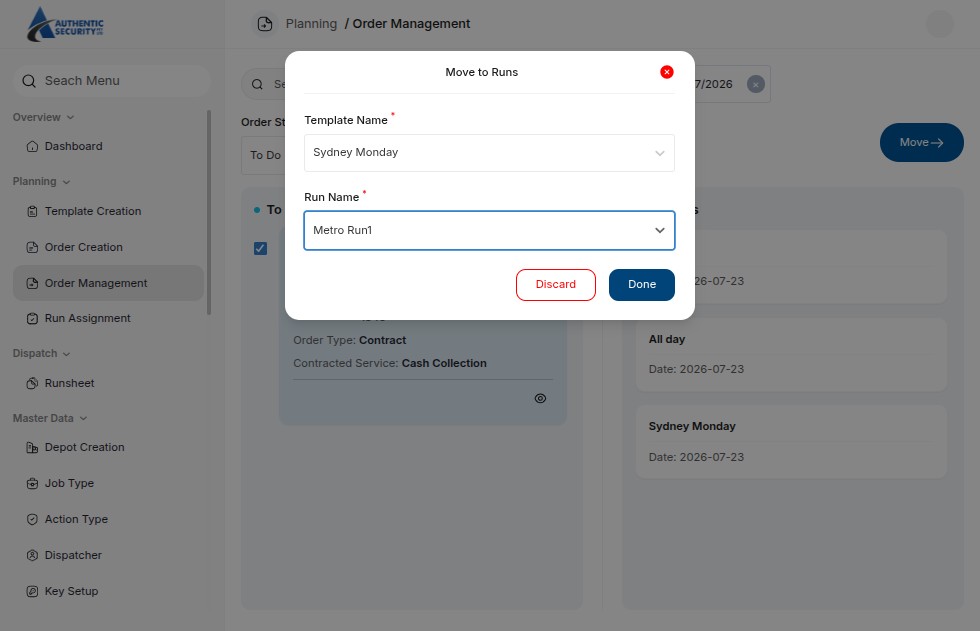
From the pop-up window, choose the destination to move the selected order into an active Run.
Step 4: Select the Active Run
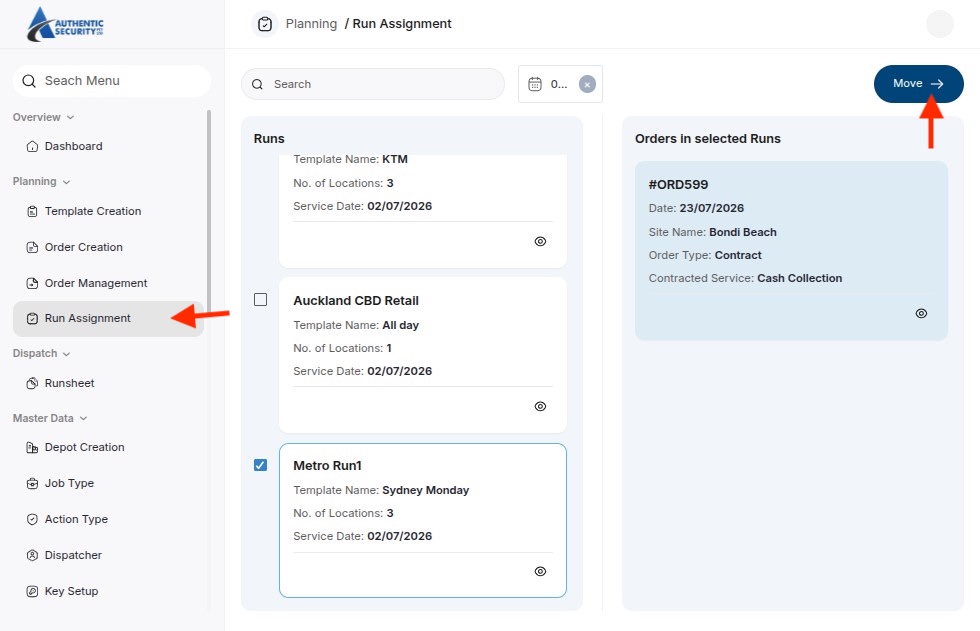
Navigate to the Run Assignment tab and apply your filters to find your recently moved run. Locate and select the specific Run from the filtered list and select Move.
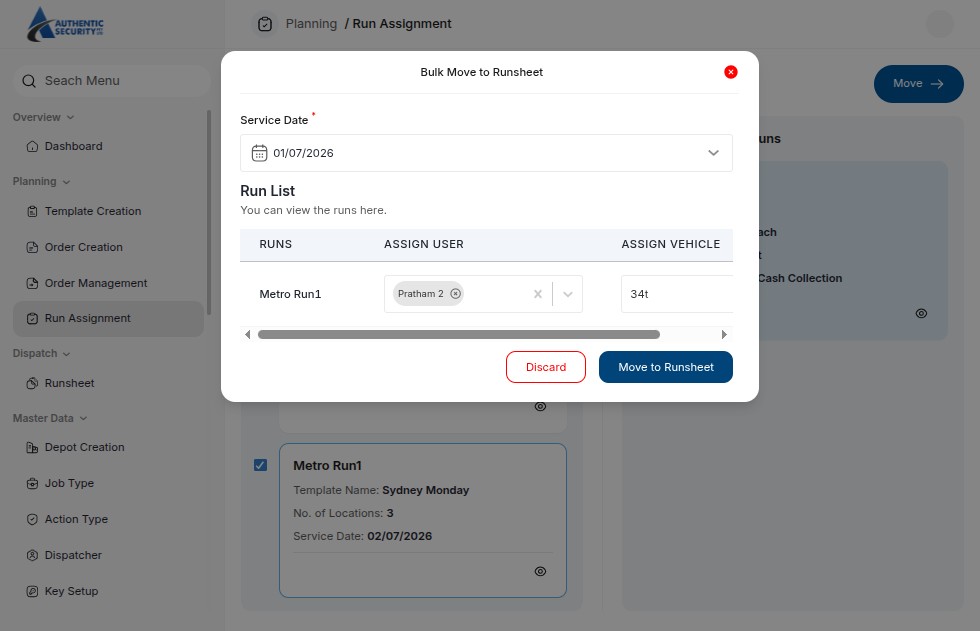
Step 5: Assign User, Vehicle & Generate Runsheet
Assign the appropriate User (Driver/Guard) and Vehicle, then click the Move to Runsheet action button.
Phase 3: Managing the Runsheet
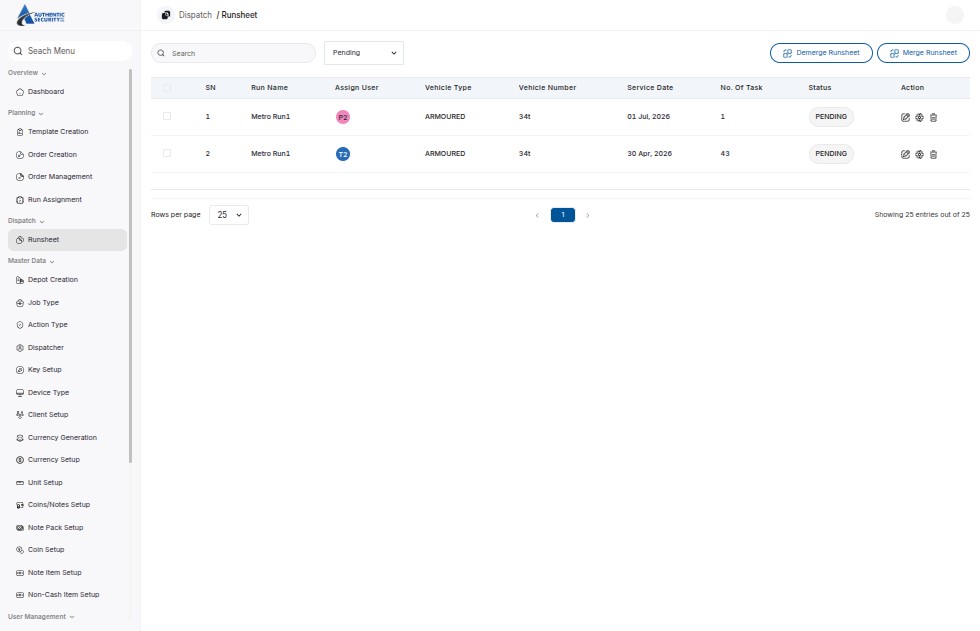
Runsheet Created Successfully The runsheet is now live and can be accessed by field personnel or drivers assigned to the vehicle.
Step 1: Confirmation
Review the newly created Runsheet details on your screen to ensure run details are correct.
Step 2-4: Available Management Actions
Use the interactive options below to see how to handle the active runsheet.
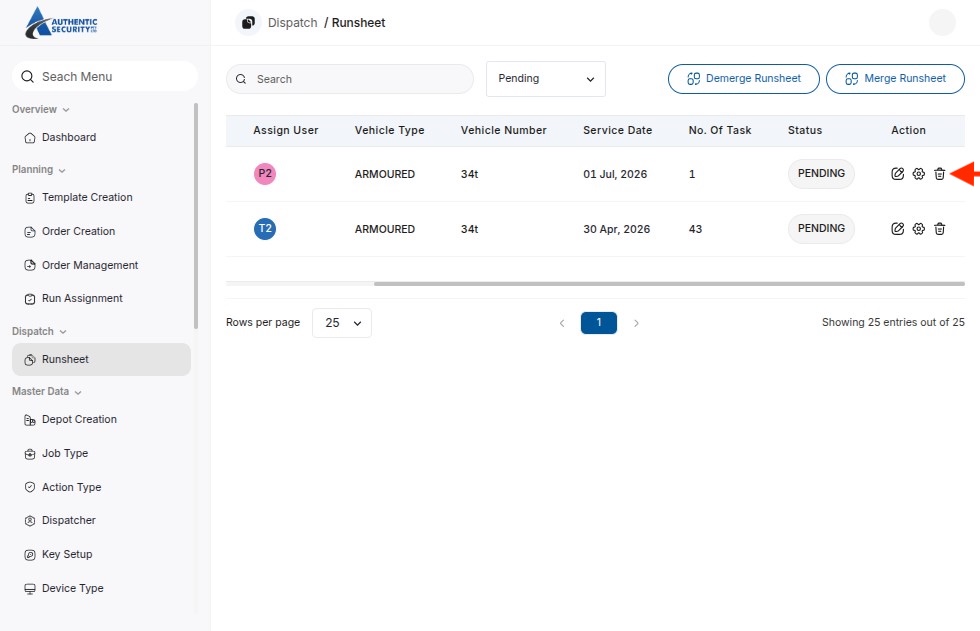
- ✏️ Edit Run (Step 2)
- 👁️ View Status (Step 3)
- 🗑️ Delete Run (Step 4)
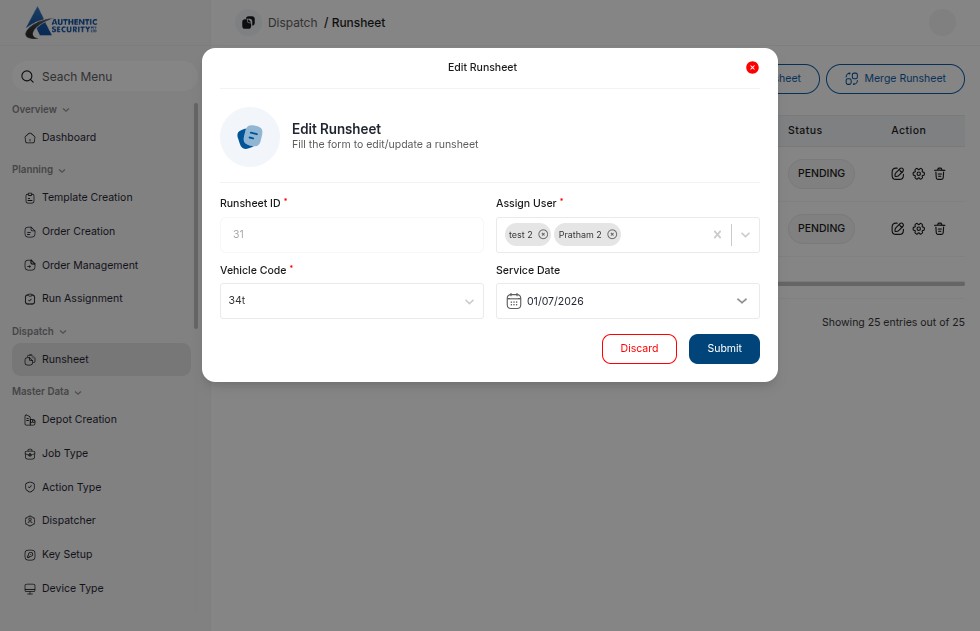
Click Edit if you need to dynamically alter the assigned personnel, adjust the vehicle, or update the scheduled execution date.
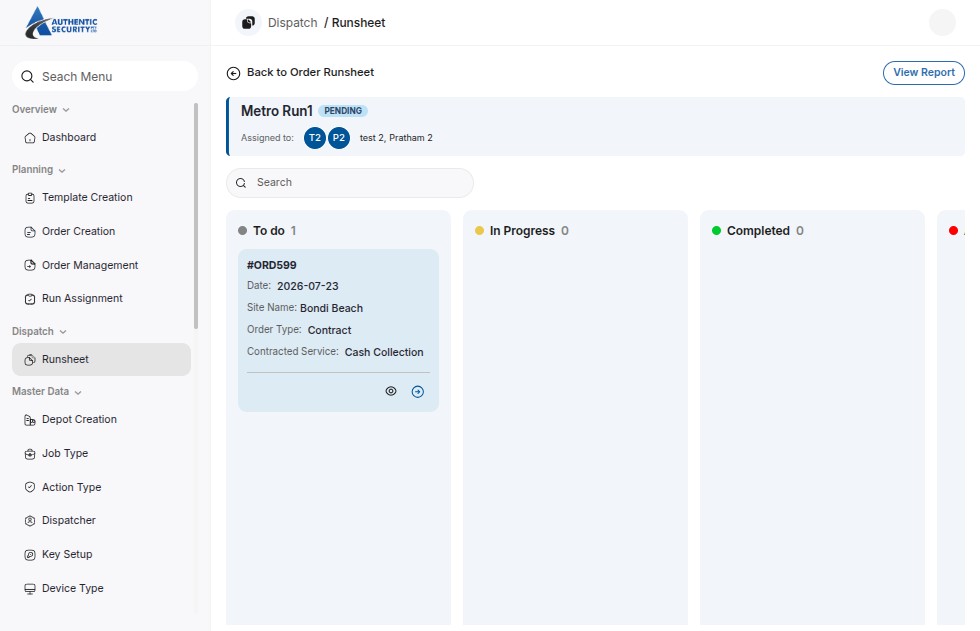
Click View Status at any time to monitor the real-time progression and individual order lifecycles within the run.
If a run is canceled or needs a complete rebuild, use the Delete action to dissolve the runsheet and return orders back to the Unassigned pool.